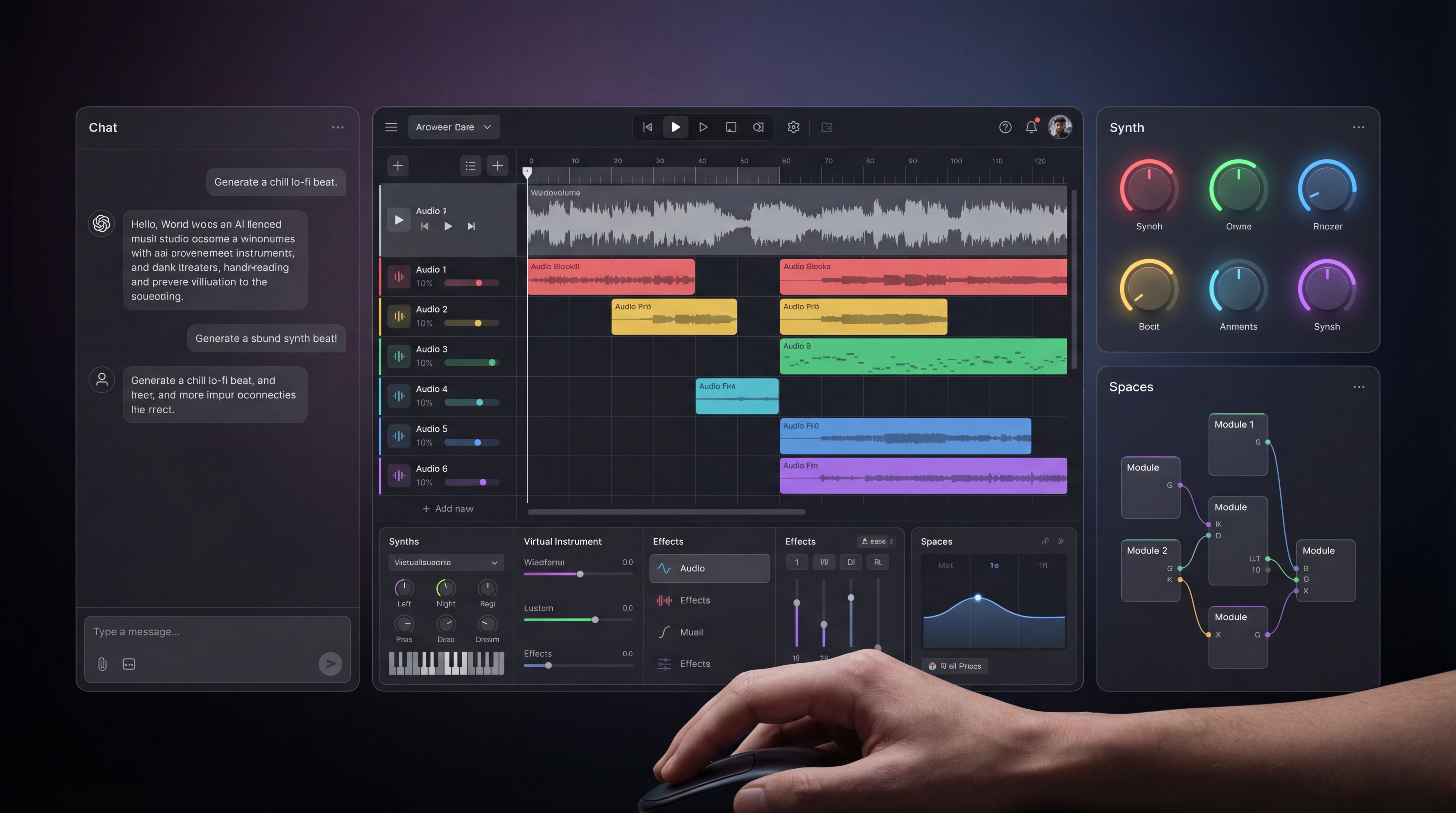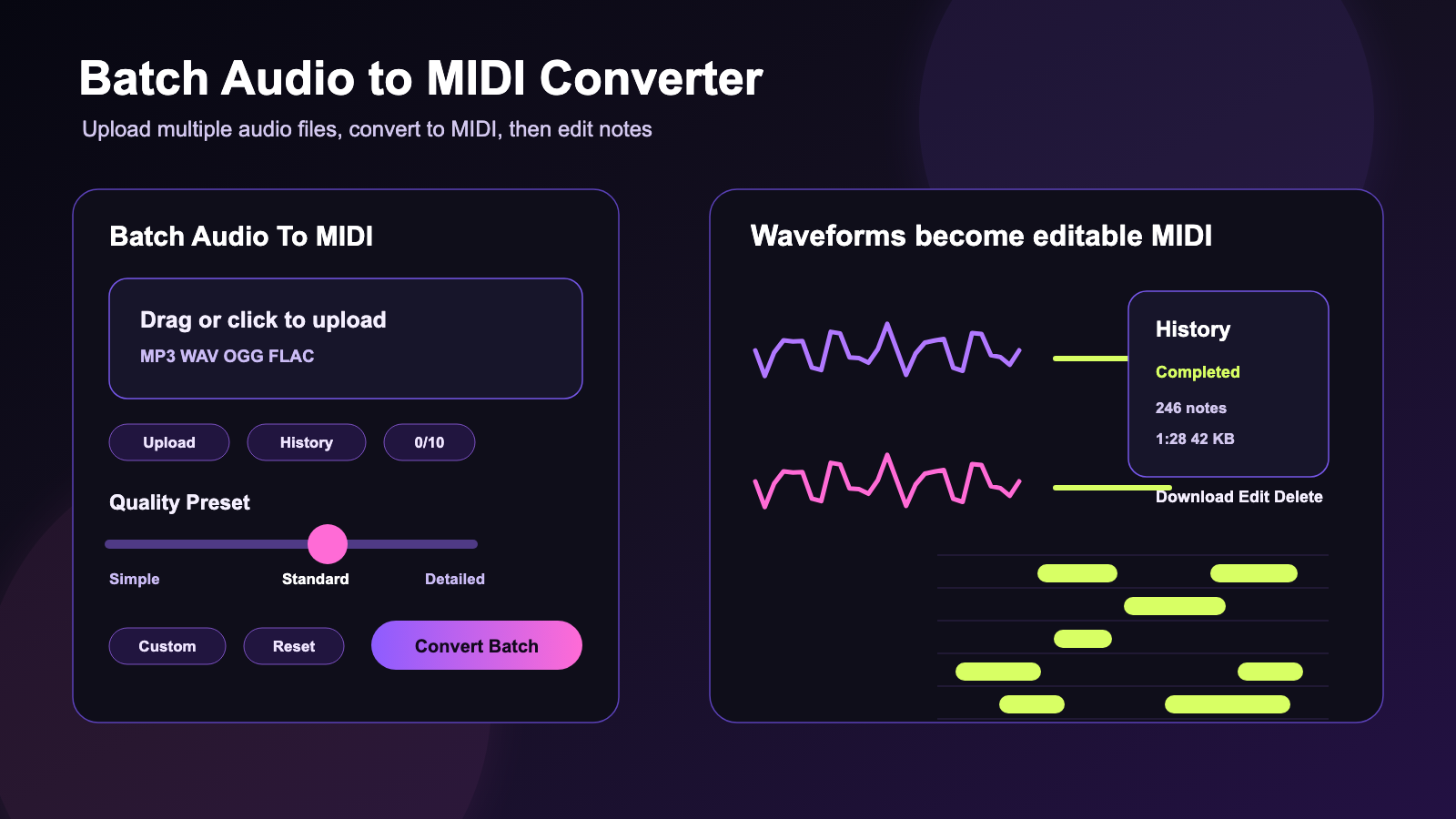
If you need a fast batch audio to MIDI converter, MusicMaker AI gives producers, beatmakers, composers, music students, remix creators, and content creators a practical way to turn multiple audio files into editable MIDI before opening a full DAW. Instead of converting one file at a time, you can upload several tracks, choose a transcription quality preset, convert the batch, then download MIDI files or clean them up in an editor.
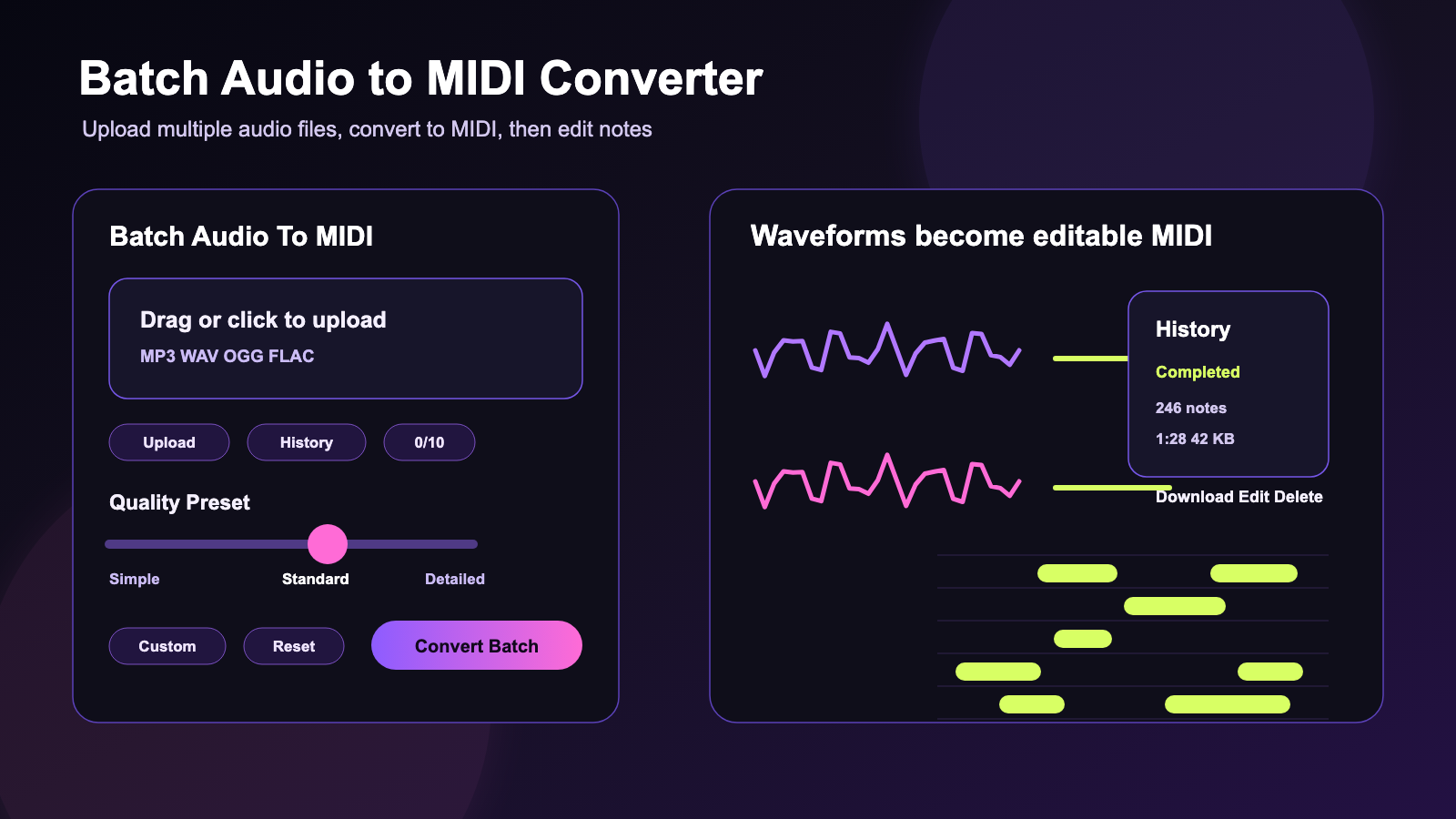
Batch audio-to-MIDI conversion is useful when you want to extract melodies from reference recordings, sketch remix ideas, practice a phrase, study an arrangement, or move audio ideas into a MIDI workflow. The result is not always perfect, but it gives you editable notes that can be cleaned, quantized, reharmonized, and assigned to new instruments.
Quick Summary
Use the batch audio to MIDI converter when you want to convert multiple audio files to MIDI in one online workflow. It works as an AI batch audio to MIDI tool for producers comparing hooks, students transcribing practice clips, remix creators extracting melodic ideas, and composers turning rough recordings into editable MIDI parts.
For single files, use the audio to MIDI converter. After conversion, use the MIDI editor to fix notes, timing, pitch choices, and arrangement details before importing the result into your DAW.
What Batch Audio-to-MIDI Conversion Does
Batch audio-to-MIDI conversion takes several audio files and transcribes musical information into MIDI files. The source audio can be a vocal melody, instrument line, loop, sketch, practice recording, or song section, while the output is a MIDI file that can be edited, moved to a different instrument, or arranged inside a DAW.
This workflow is different from simple file format conversion. A bulk audio to MIDI converter online tries to detect notes, rhythms, and musical structure, then rebuild that information as editable MIDI. That is why it is useful for remixing, melody extraction, music study, arrangement planning, and turning rough musical ideas into something you can edit.
Use a batch MP3 to MIDI converter when your references are exported as MP3. Use a batch WAV to MIDI converter when you have cleaner uncompressed files. MusicMaker AI's batch panel also shows MP3/WAV/OGG/FLAC support, which makes it useful when your audio folder contains mixed formats.
How to Use MusicMaker AI Batch Audio to MIDI
The workflow is simple: upload files, choose a quality preset, convert, review history, then download or edit the MIDI output. The visible interface includes a Batch Audio To MIDI panel, a drag-or-click upload area, an Upload button, a History button, and a 0/10 batch limit display so you can see how many files are queued.
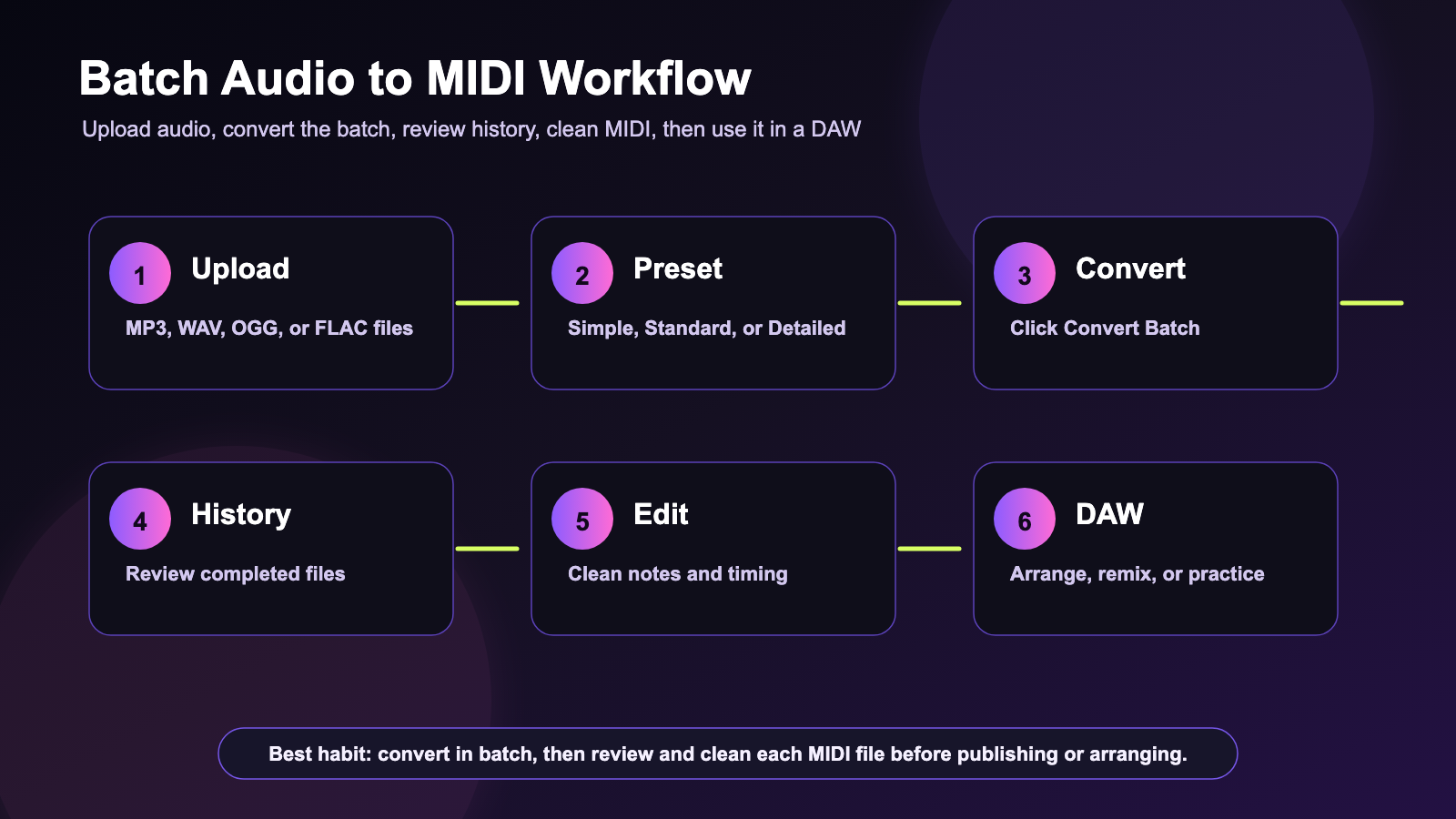
- Open Batch Audio to MIDI.
- Drag audio into the upload area or click to choose multiple MP3, WAV, OGG, or FLAC files.
- Check the batch counter, such as 0/10, so you know how many files are included.
- Choose a Quality Preset: Simple, Standard, or Detailed.
- Use Custom only when you need manual control, or Reset if you want to return to the default setup.
- Click Convert Batch.
- Review completed files in History. The panel can show completed conversion status, note count, file duration, MIDI file size, a download icon, an edit icon, and a delete icon.
- Download MIDI files or open them in the online MIDI editor for cleanup.
- Use the MIDI output in a DAW, arrangement project, remix workflow, composition session, or practice routine.
The tool also shows a local history note. Treat that as a practical reminder: download important MIDI files after conversion and keep your own project backups rather than assuming browser history is long-term storage.
Simple vs Standard vs Detailed Quality Presets
The Quality Preset slider is the most important setting before conversion. It runs from Simple to Standard to Detailed, and each setting fits a different production job.
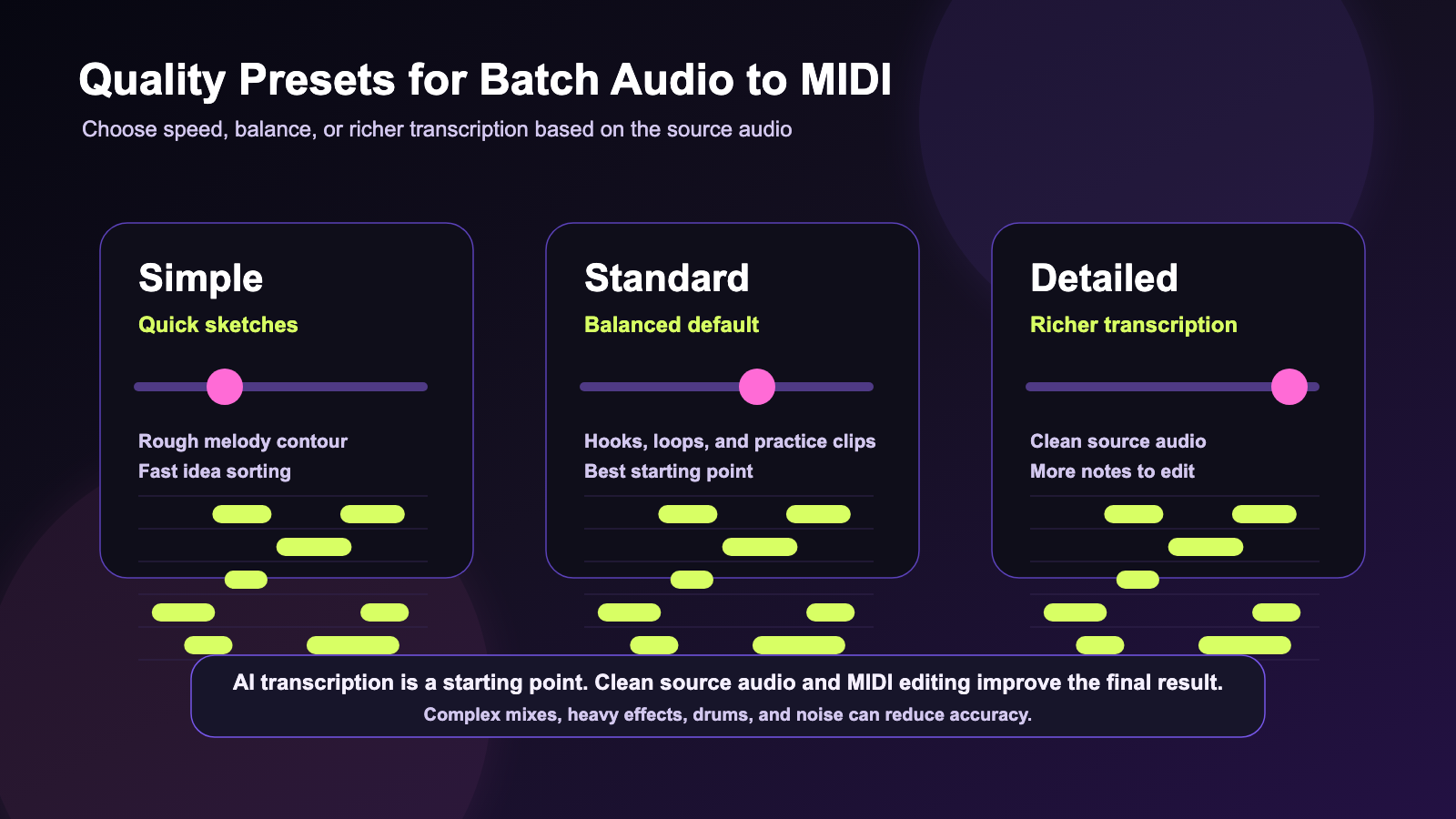
| Quality preset | Best for | What to expect |
|---|---|---|
| Simple | Quick sketches, rough melody extraction, fast sorting | Faster, lighter MIDI that may need more manual correction. |
| Standard | Balanced conversion for most music ideas | A practical default for loops, hooks, melodies, and practice files. |
| Detailed | Richer transcription when source audio is clean | More note detail, which can help complex parts but may require cleanup. |
Start with Standard if you are unsure. Use Simple when you mainly need the contour of a melody or a fast sketch. Use Detailed when the audio is clear and you want more transcription information to edit afterward.
What to Do After Converting Audio into MIDI
The next step is cleanup, not blind export. AI audio-to-MIDI conversion can give you a usable starting point, but you should expect to fix extra notes, missing notes, timing drift, octave choices, and unwanted fragments.
Open the converted file in the browser-based MIDI editor when you want to edit converted MIDI online before moving into a DAW. Use it to fix MIDI notes after conversion, clean up audio to MIDI results, and edit MIDI melody and timing while the idea is still fresh.
In a DAW, you can assign the MIDI to piano, synth, bass, strings, brass, drums, or any virtual instrument. You can also quantize timing, split the part by range, change the key, double the melody with another sound, or use the MIDI as a guide track for a new arrangement.
When to Use Single-File Audio to MIDI Instead
Use the batch tool when the job involves several files. Use the free audio to MIDI converter when you only need one clip converted, when you want to test a source before batching, or when you are learning the workflow for the first time.
The single-file AI audio to MIDI converter online is useful when you want to convert audio recording to MIDI, turn melody audio into MIDI, run audio transcription to MIDI, or create music audio to editable MIDI from one focused recording. If the result looks good, move similar files into the batch workflow.
This is also a good way to test source quality. If one file produces messy output, a full batch of similar audio will probably need the same cleanup.
Best Source Audio for Better MIDI Results
Clean source audio gives the converter a better chance of producing useful MIDI. Clear melodies, isolated instruments, simple arrangements, and recordings with low background noise usually work better than dense mixes.
Audio-to-MIDI conversion may need cleanup when the file contains:
- Complex full mixes with overlapping instruments.
- Heavy reverb, delay, distortion, or pitch effects.
- Drums and percussion competing with melodic material.
- Background noise, room echo, crowd noise, or low recording quality.
- Unclear melodies, fast runs, bends, slides, or layered harmonies.
For best results, use the cleanest file available. If needed, prepare files with the free audio converter for music files before upload, trim long silences, and separate the clearest musical phrase you want to transcribe.
Recommended MusicMaker AI Tools for the Full Workflow
MusicMaker AI has several AI music tools that fit around batch transcription. Use the batch converter for multi-file MIDI extraction, then choose the next tool based on the creative job.
- Audio to MIDI Converter: best for single-file conversion, quick tests, and focused melody extraction.
- MIDI Editor: best for editing converted MIDI online, fixing timing, deleting stray notes, and preparing files for a DAW.
- Music to Text: useful as a music to text tool for transcription support when you also need lyric, structure, or spoken-content notes.
- AI Music Checker: useful as an AI music checker for song analysis when you want to check whether tracks may be AI-generated.
- Free Audio Converter: useful for format preparation before upload.
- AI Song Generator: useful as an AI song generator for music ideas when you want to turn edited MIDI concepts into fuller song directions.
- AI Lyrics Generator: useful as an AI lyrics generator for songwriting when your MIDI idea needs words.
- AI Music Video Generator: useful as an AI music video generator for finished songs when the track is ready for visual content.
Practical Use Cases for Producers and Students
Batch conversion is most useful when you have a folder of related ideas. A producer might convert several hook recordings, compare the MIDI, then keep the strongest phrase. A remix creator might convert vocal or instrumental references to find melodic shapes. A music student might batch convert practice recordings, then study pitch and timing in a piano-roll view.
For content creators, a batch workflow can turn short audio references into editable musical ideas for intros, loops, background beds, or social content. For composers, it can speed up sketch organization by moving rough recordings into notation, arrangement, or DAW sessions.
The main advantage is speed. A batch convert songs to MIDI workflow can help you sort many ideas quickly, then spend your detailed editing time only on the files worth keeping.
Related Articles
- How to Convert Audio to MIDI with AI: A Guide to Audio-to-MIDI Workflow
- Best Free Audio-to-MIDI Converters With No Signup: What to Use in 2026
- MusicMaker AI Free MIDI Editor: A Simple Guide to Editing MIDI Online
- Make a Coachella-Inspired Remix for TikTok and YouTube Shorts with MusicMaker AI
- How to Use the AI Music Video Generator: A Detailed Guide from Song to Video
- From Lyrics To A Finished Song In Minutes: Music Maker Ai Workflow Guide
People Also Read
- Converting Audio to MIDI
- Converting Audio to MIDI
- What Is MIDI? A Simple and Practical Guide
- 7 Best Audio to MIDI Converter Software Tools For Musicians
- Using Reason 9's Convert Audio To MIDI Feature
FAQ
What is a batch audio to MIDI converter?
A batch audio to MIDI converter lets you upload multiple audio files and convert them into editable MIDI files in one workflow. It is useful when you have several melodies, loops, recordings, or song sections to transcribe.
Can I batch convert MP3 and WAV files to MIDI?
Yes. MusicMaker AI's Batch Audio To MIDI interface shows support for MP3, WAV, OGG, and FLAC files, making it useful for mixed audio folders and quick multi-file transcription.
Will audio-to-MIDI conversion be perfectly accurate?
Not always. Complex mixes, heavy effects, drums, background noise, overlapping instruments, and unclear melodies can reduce transcription accuracy. Plan to review and clean up the exported MIDI in a MIDI editor or DAW.
Which quality preset should I choose?
Use Simple for quick sketches, Standard for balanced results, and Detailed for richer transcription when the source audio is clean. If you are unsure, Standard is the safest starting point.
What should I do with MIDI after conversion?
Download the MIDI, open it in the MusicMaker MIDI Editor or your DAW, fix notes and timing, then assign it to instruments, build an arrangement, create a remix, or use it for practice and study.
Conclusion
A batch audio to MIDI converter is useful when you want to turn several audio ideas into editable MIDI without opening a full DAW first. MusicMaker AI's batch workflow keeps the process direct: upload multiple MP3, WAV, OGG, or FLAC files, choose Simple, Standard, or Detailed, convert the batch, review completed files in history, then download or edit the MIDI.
For the best results, use clean source audio and treat AI transcription as a starting point. The real creative value comes after conversion, when you refine the MIDI, assign instruments, reshape the arrangement, and turn the extracted notes into something new.