How to Generate Instrumental Music With AI: A Practical Workflow for Background Tracks
If you have ever needed background music for a YouTube video, a game scene, a podcast intro, or a study playlist, you already know the real problem: finding the right vibe often takes longer than editing the content itself.
This guide walks you through a simple, repeatable workflow for making instrumental tracks with an AI instrumental music generator—specifically, MusicMaker’s AI Song Generator. By the end, you will know how to turn a short prompt into a polished instrumental track you can actually use.
Tool used in this guide: AI instrumental music generator
What Instrumental AI Music Really Means
AI-generated instrumental music means music without vocals—no lyrics, no singing, just instruments, rhythm, texture, and mood. It is especially useful when you want the music to support your content instead of competing with it.
Common use cases include:
- Creator background beds for vlogs, tutorials, Shorts, and Reels
- Podcast intros and outros for cleaner, more consistent branding
- Game and app soundtracks for loops, ambience, tension, and victory cues
- Ads and product videos that need energy without distraction
- Focus music such as lo-fi, ambient, minimal techno, or piano
If your goal is music that fits naturally into content, you will usually get better results by starting with an AI background music generator workflow instead of trying to create a full vocal song.
Before You Generate: A 2-Minute Setup Checklist
Most disappointing AI tracks happen because the prompt is too vague. Before you generate anything, decide these three things.
1. Define the purpose
Ask yourself what the track is supposed to do.
- Loopable background: steady vibe, minimal change
- Storytelling underscore: build, peak, and resolve
- Intro stinger: short, memorable, and branded
2. Describe the vibe in plain English
Pick two or three words that describe the feeling.
- warm, dreamy, cozy
- tense, suspenseful, ominous
- confident, premium, modern
- playful, bubbly, cute
3. Choose the sonic direction
Start with one main direction, then refine later if needed.
- Genre: lo-fi, cinematic, ambient, synthwave, orchestral, jazz
- Tempo: slow, mid, fast, or a BPM range
- Instruments: piano, strings, guitar, synth pads, drums, bells
This quick prep turns a random prompt into a useful creative brief.
Step by Step: How to Generate Instrumental Music With AI
This is a practical workflow for how to generate instrumental music with AI using MusicMaker’s AI Song Generator.
Step 1. Open the generator and choose your mode
Go to AI instrumental music generation.
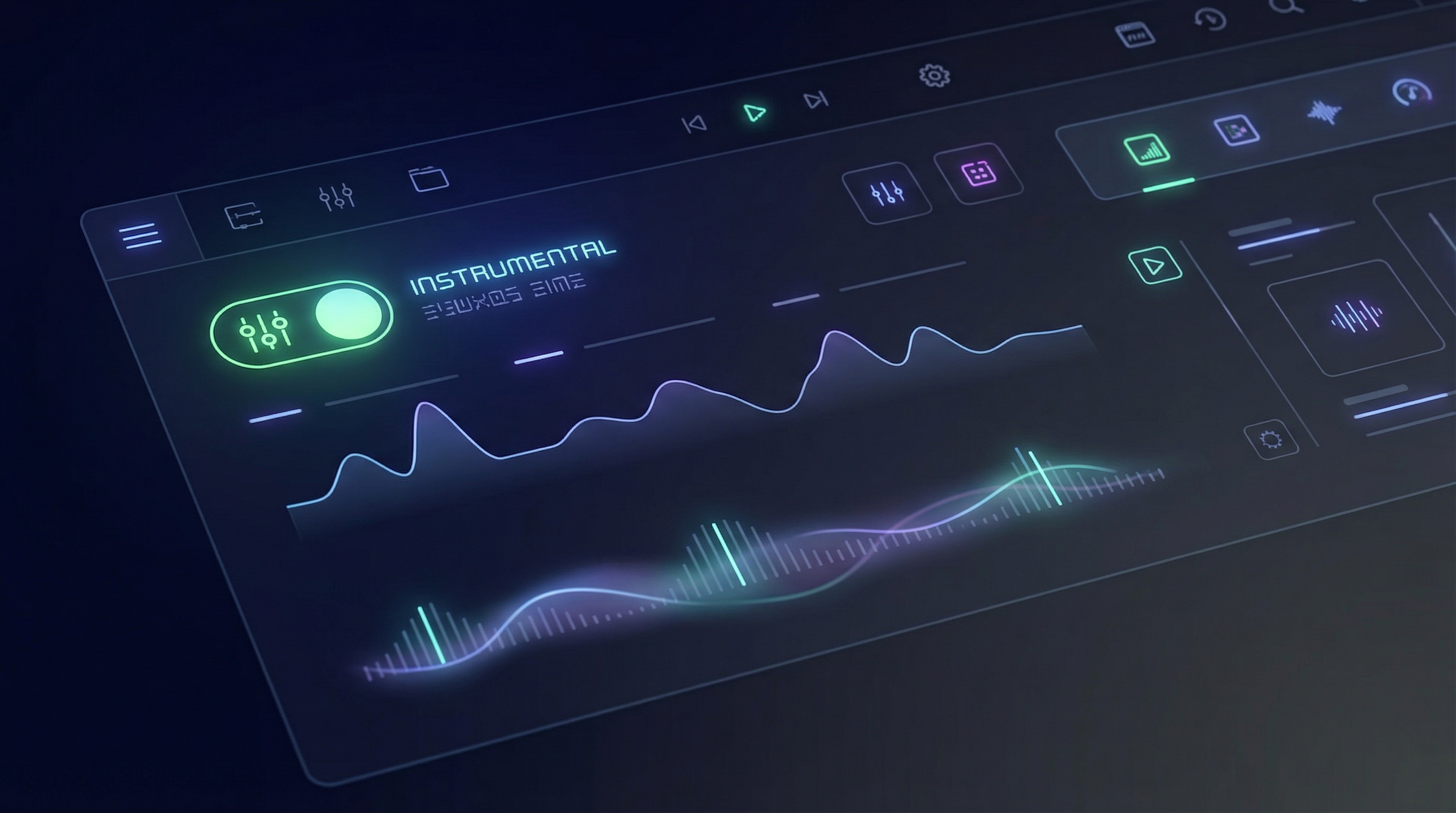
In the interface, you will usually see:
- a Basic / Custom mode switch
- model or version options such as v3.5, v4.0, v4.5, v4.5+, or v5.0
- a large Description box
- an Instrumental toggle
- optional tools such as Inspire Me, Upload Audio, and My Creation
Turn Instrumental on first. That tells the system you want a purely instrumental result.
Step 2. Pick a model version based on your goal
If multiple versions are available, use this simple approach:
- Draft quickly first with a faster model so you can test ideas
- Upgrade for polish once the prompt is already working
If you are unsure, start with the default option and compare it against one newer version using the same prompt. In practice, a stronger prompt plus a better model usually works better than endless setting changes.
Step 3. Write a prompt that produces usable instrumentals
Treat the prompt like a short creative brief.
A reliable structure is:
Mood + Genre + Instruments + Tempo + Use case + Mix notes
Here is a simple template:
“[MOOD] [GENRE] instrumental, [TEMPO/BPM], featuring [INSTRUMENTS]. Designed for [USE CASE]. Clean mix, [MIX NOTES]. Loop-friendly ending.”
Example:
“Cozy lo-fi instrumental, 80–90 BPM, warm Rhodes piano, soft vinyl texture, gentle drums, subtle bass. Designed for study and vlog background. Clean mix, mellow highs, minimal lead melody, loop-friendly ending.”
This format works especially well when using an AI instrumental music generator because it clearly tells the model what to emphasize and what to avoid.
Step 4. Generate 2 to 4 variations first
Do not chase perfection on the first try. AI music works best when you treat the first pass like a sampling session.
Listen for these questions:
- Is the vibe right within the first 5 to 10 seconds?
- Does the track feel clean or cluttered?
- Can it loop naturally?
- Is the melody subtle enough for background use?
Choose the best core idea first. You can refine it afterward.
Step 5. Iterate with micro-edits
This is where most of the improvement happens. Keep most of your prompt the same and change only one detail at a time.
Examples:
- less drums
- more spacious reverb
- remove lead melody
- more cinematic build
- tighter bass, clean low end
- brighter, more modern
Small edits help you steer the track without losing the part that already works.
Optional: Use Upload Audio when you have a reference vibe
If the interface includes Upload Audio, you can use a short sample to guide the output.
This is useful when:
- you want to keep a certain tempo groove
- you want a similar mood with a different melody
- you want the AI to continue the feel of a rough clip
If you do not have a reference clip, text prompts alone are still enough for strong results.
Prompt Templates for Different Instrumental Goals
Use these as reusable starting points.
1. Loopable background for YouTube or short-form video
Prompt:
“[MOOD] [GENRE] instrumental, [BPM/TEMPO], loopable background track. Light percussion, clean bass, minimal lead melody, consistent energy. Designed for [USE CASE]. Warm mix, not too bright, smooth ending for looping.”
Useful swaps:
- cozy → motivational / premium / mysterious
- lo-fi → ambient / chillhop / acoustic
2. Cinematic underscore
Prompt:
“Cinematic instrumental score, [EMOTION], [TEMPO], strings, low brass, and soft pulses. Evolving tension, gradual build, dramatic moments, wide atmosphere. Clean orchestral mix, clear dynamics, no vocals.”
Helpful refinements:
- bigger climax
- more silence and space
- more staccato strings
3. Game exploration ambience
Prompt:
“Ambient instrumental, [SETTING], slow evolving textures, gentle motif fragments, no vocals. Loop-friendly, immersive atmosphere, subtle movement, minimal percussion. Designed for game exploration.”
Setting ideas:
- ancient temple
- neon city
- snowy forest
- underwater ruins
- desert night
4. Product or ad music bed
Prompt:
“Modern upbeat instrumental, clean and premium, simple chord progression, light drums, bright but not harsh. Designed for product ads and short videos. No aggressive bass, no vocals, clear rhythm for edits.”
Mini Workflows by Goal
Workflow A: Fast draft to polished version
- Write one strong prompt
- Generate three variations
- Pick the best take
- Make one micro-edit
- Re-generate with a higher-quality version
This is the fastest path to a usable result.
Workflow B: Soundtrack-first creation
If you are building music for a scene, think in beats:
- Intro: establish the atmosphere
- Build: increase tension or momentum
- Release: resolve or leave a cliffhanger
This is where an AI soundtrack generator style workflow becomes especially useful.
Workflow C: Repeatable background music workflow
Create a few reusable presets for your common content needs:
- cozy / study
- tech / modern
- cinematic / suspense
- playful / cute
- premium / brand-safe
Once you save these patterns, you can create faster and keep your content style more consistent.
Troubleshooting: 8 Common Problems and Fixes
1. The track feels too busy
Add:
- minimal lead melody
- fewer instruments
- simple motif, not complex
2. The loop does not feel natural
Add:
- loop-friendly ending
- seamless tail
- avoid big finale
3. The vibe feels wrong
Adjust the mood words first.
- tense → mysterious → dramatic → hopeful
4. The highs sound harsh or metallic
Add:
- warm tone
- softer top end
- less sharp cymbals
5. The bass feels muddy
Add:
- clean low end
- tight kick
- less sub bass
6. The track has no hook
Add:
- memorable 4–8 note motif
- gentle melody phrase
7. The music is too repetitive
Add:
- subtle variation every 8 bars
- evolving textures
8. Vocals appear by accident
Make sure the Instrumental toggle is enabled, then regenerate.
Best Practices Before Publishing
- Save your best prompts as reusable presets
- Describe a vibe instead of naming copyrighted songs directly
- Check usage terms for your intended personal or commercial use case before publishing
FAQ
What is an AI instrumental music generator?
An AI instrumental music generator creates music from text prompts and sometimes audio references, with the option to generate tracks without vocals when Instrumental mode is enabled.
How long should the prompt be?
Short prompts can work, but results are usually better when you include mood, genre, instruments, tempo, and usage context without making the prompt overly long.
How do I get better results faster?
Generate multiple versions first, then refine with small edits instead of rewriting the whole prompt each time.
More Tools to Extend the Workflow
Once you are comfortable with AI instrumental music generation, these tools can help you expand the workflow:
- Image to Music — generate music inspired by an image: https://musicmaker.im/image-to-music/
- Text to Music — create quick drafts from text prompts: https://musicmaker.im/text-to-music/
- Audio to Music — transform or remix an audio clip: https://musicmaker.im/audio-to-music/
- AI Music Extender — turn a short loop into a longer track: https://musicmaker.im/ai-music-extender/
- Music to MIDI — extract MIDI for later editing: https://musicmaker.im/music-to-midi/
- AI Vocal Remover — remove vocals when you have the legal right to do so: https://musicmaker.im/ai-vocal-remover/
- AI Music Video Generator — pair a track with generated visuals: https://musicmaker.im/ai-music-video-generator/
- AI Lyrics Generator — add lyrics later if you decide to build a vocal version: https://musicmaker.im/ai-lyrics-generator/
Recap
- Decide the purpose of the track
- Write a prompt like a creative brief
- Generate several variations
- Refine with small changes
- Upgrade the version for the final pass
Related Article
- AI Music Generator for Creators: Turn Ideas Into Finished Tracks
- How to Convert Audio to MIDI with AI: A Guide to Audio-to-MIDI Workflow
- How to Use the AI Music Video Generator: A Detailed Guide from Song to Video