Gemini Omni 1.1 Flash AI Music Video Generator

Turn a song idea, visual concept, or starting image into a directed short music video with Gemini Omni 1.1 Flash. Add an ending image when a visualizer, artist promo, social edit, or cinematic story needs a planned transition.

Gemini Omni 1.1 Flash AI
Model Version
Prompt
Public:
Select a video from your history to play

--
--
--
Video History

Introduction to Gemini Omni 1.1 Flash AI Video Generator

Explore prompt-led music visuals, image-guided motion, and optional ending-frame direction.

Gemini Omni 1.1 Flash gives creators a focused workflow for turning a prompt or starting image into a short music-video concept. Use the prompt to direct the subject, movement, camera, lighting, and mood, then add an ending image when the result needs a deliberate final composition.

Examples of Gemini Omni 1.1 Flash AI Video Generation

Explore how detailed prompts and image guidance become short music visuals with directed motion, cinematic framing, smooth transitions, and a clear visual story.

Original Image
Preview
Video
Prompt

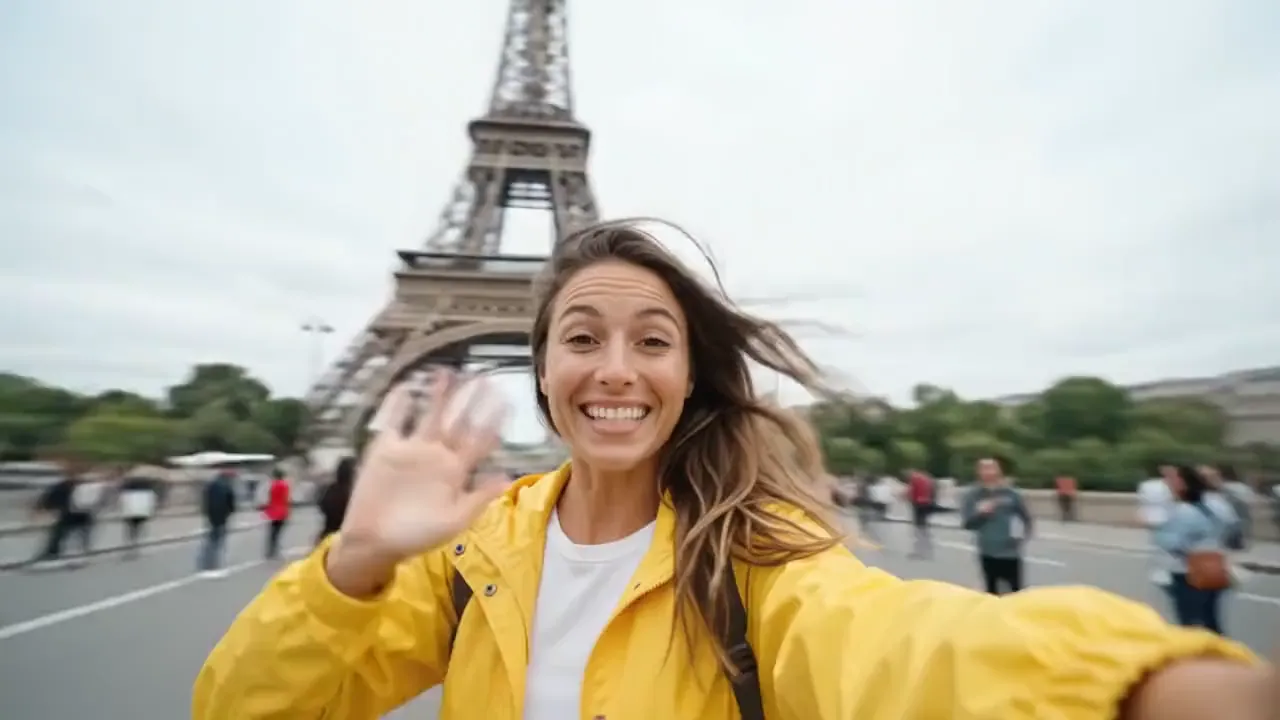
Create a 10-second cinematic hyper-lapse selfie travel video of the uploaded female character across 20 world-famous destinations in 2026. Use hard cuts every 0.5 seconds synced to the beat. Handheld selfie-stick camera, wide-angle lens, close selfie framing, energetic travel-vlogger style, vibrant cinematic colors, realistic lighting, dynamic motion blur, natural crowds and clear landmarks in every shot.

Core Features of Gemini Omni 1.1 Flash AI Video Generator

Gemini Omni 1.1 Flash combines prompt-led creation, image-guided motion, and optional ending-frame direction for focused music-video concepts.

Generate Video from Text

Describe the subject, action, environment, camera movement, lighting, and visual style to create a complete short video directly from a prompt.

Guide Motion with Start and End Frames

Upload a starting image to guide the opening composition, then add an ending image when the final composition, transition, or reveal matters.

Refine a Clear Visual Direction

Use prompt details and source imagery to shape movement, camera behavior, lighting, pacing, and the visual transition across a focused music-video idea.

Adapt Visuals for Different Channels

Develop visualizers, artist promos, product moments, and social concepts in the available framing that fits the way the video will be shared.

Advantages of Gemini Omni 1.1 Flash AI Video Generator

Move from an idea or source image to a short music-video concept while keeping the prompt, visual direction, and transition between frames under clear creative control.

Start with Text or Visual Direction

Use a prompt for a new scene or upload frame images when performer identity, cover art, product appearance, or composition should guide the result.

Control How a Clip Begins and Ends

Guide the opening with one image or add a final image when a transition, reveal, narrative beat, or planned ending composition matters.

Test Music-Visual Directions Faster

Compare motion, camera ideas, cover-art animation, and visual direction before committing to a larger release, campaign, or production workflow.

Adapt Visuals for Different Channels

Create wide or vertical versions for music releases, social promotion, artist campaigns, product moments, presentations, and connected creative workflows.

Application Scenarios of Gemini Omni 1.1 Flash AI Video Generator

Use Gemini Omni 1.1 Flash for music visuals, social clips, product storytelling, and cinematic concepts that benefit from prompt direction or frame-guided motion.

Music Videos and Visualizers

Develop performance scenes, lyric-video moments, animated cover art, release teasers, and atmospheric clips that support the identity of a song or artist.

Short-Form Social Content

Create vertical hooks, creator-style scenes, mood edits, and quick story beats for TikTok, Reels, YouTube Shorts, and campaign testing.

Advertising and Product Stories

Animate product images or direct new scenes for launch concepts, promotional moments, ecommerce storytelling, and branded social posts.

Storyboards and Cinematic Previews

Test camera movement, scene transitions, lighting, composition, and narrative direction before committing to a larger video production.

Explore Gemini Omni 1.1 Flash Video Creations on Twitter

See how creators use prompts and frame images to explore motion, transitions, composition, visual style, product storytelling, and short-form video ideas.

How to Use Gemini Omni 1.1 Flash AI Video Generator

Create a Gemini Omni 1.1 Flash video in three steps: enter a prompt or starting image, choose the available settings, then generate and refine the result.

Add a Prompt or Starting Image

Write a detailed prompt for text-to-video, or upload a starting image for image-to-video. Add an ending image only when you need to guide the final composition.

Choose Video Settings

Select 16:9 or 9:16, choose 360p, 720p, 1080p, or 4K resolution, and set the duration to 5 or 10 seconds.

Generate, Review, and Refine

Start generation, review the result, then adjust the prompt, source frames, aspect ratio, resolution, or duration for another version.

Manual guide

Frequently Asked Questions About Gemini Omni 1.1 Flash

More Articles About Gemini Omni 1.1 Flash AI Video Generator