If you opened AI Pop Generator and wondered whether to choose Basic or Custom mode, the short answer is simple: Basic mode is for fast song ideas, while Custom mode is for more intentional control. Basic lets you describe the track you want and generate quickly. Custom gives you dedicated fields for lyrics, music style, title, vocal direction, instrumental mode, and audio-based inputs.
That difference matters because not every creator needs the same workflow. A YouTuber may only need background music for a short intro. A songwriter may want lyrics, a specific vocal tone, and a cleaner pop structure. A marketer may need a bright pop track for ads, while a social creator may want a quick instrumental for a Reel. This guide explains how to use the AI pop music generator in both modes so you can choose the right path before spending credits or time on the wrong draft.
What Is AI Pop Generator?
AI Pop Generator is a MusicMaker tool for creating pop songs, instrumentals, demos, and music ideas from text descriptions, lyrics, style prompts, or uploaded audio. Instead of building a track manually in a DAW, you describe the sound you want and let the system generate a pop-style result.
You can use it for pop song creation, social media music, YouTube background music, podcast intro music, demo songs, and pop music for ads. It can also help beginners who do not know music theory but still have a strong idea of mood, style, or use case.
The main decision is whether to use Basic mode or Custom mode. Basic is faster. Custom is more detailed. Both can be useful, but they serve different creative moments.
Basic Mode: The Fastest Way to Generate a Pop Song
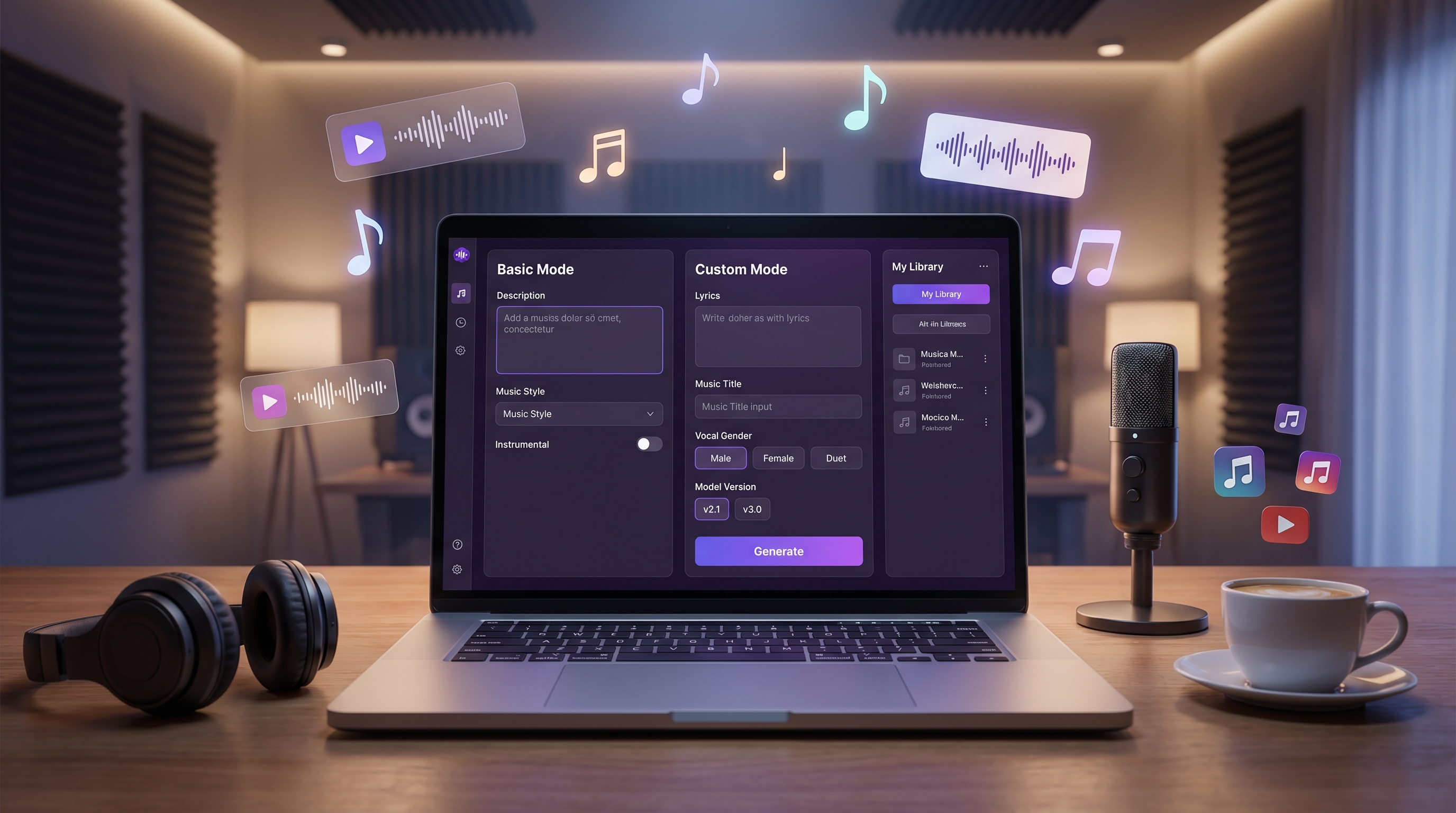
Basic mode is the easiest starting point inside the AI pop generator tool. It gives you a description box, model version options, an Instrumental toggle, an Inspire Me button, a Public option, a Generate button, and a My Library area where results can be reviewed.
Use Basic mode when you want to move from idea to music quickly. You can write a description such as “bright dance-pop track for a summer fashion reel, upbeat tempo, catchy synth hook, clean female vocal” and generate a draft without filling in separate lyric and style fields.
The Instrumental toggle is especially useful when you want music without vocals. For example, you may need background music for a video, a podcast intro, a product demo, or a short advertising clip. Basic mode lets you test these ideas quickly before deciding whether a track deserves deeper refinement.
Basic mode is also ideal for beginners. If you are unsure what to write, the Inspire Me button can help you start from a suggested direction rather than an empty prompt box.
Custom Mode: More Control Over Lyrics, Style, Title, and Vocals
Custom mode is the better choice when you already know more about the song you want. In this workflow, the AI pop song generator gives you dedicated areas for Lyrics, Music Style, Music Title, Advanced Options, and Vocal Gender. It also includes Generate Lyrics and Generate Music Style buttons, plus the Instrumental toggle.
This matters because a real pop song is not only a vibe. It has lyrics, melody, vocal identity, structure, and style direction. Custom mode lets you separate those parts instead of putting everything into one description.
For example, you can enter lyrics about a late-night breakup, ask the tool to generate a synth-pop music style, title the track “City Lights Fade,” and choose a female, male, or auto vocal direction. If you do not want vocals at all, you can use the Instrumental option and focus on arrangement instead.
Custom mode is best for songwriters, musicians, creators with a specific campaign idea, or users who want more control over vocal direction and structure.
Step-by-Step: How to Create a Song in Both Modes
Basic Mode Workflow
- Open AI Pop Generator.
- Choose Basic mode.
- Select a Music AI model version, such as V3.5, V4.0, V4.5, V4.5+, V5.0, or V5.5.
- Write a description of the song idea.
- Turn Instrumental on or off depending on whether you want vocals.
- Use Inspire Me if you need prompt direction.
- Click Generate.
- Review the result in My Library and decide whether to keep, revise, or regenerate.
Custom Mode Workflow
- Switch to Custom mode.
- Enter lyrics manually or use Generate Lyrics.
- Add a music style or use Generate Music Style.
- Add a music title.
- Choose vocal gender if needed: Auto, Female, or Male.
- Decide whether to use Instrumental mode.
- Upload audio or use My Creation if you want to build from an existing idea.
- Generate the track, review it, and refine the result.
When Should You Use Basic Mode or Custom Mode?
Basic mode is better when speed matters. Use it for quick drafts, background music, casual testing, social clips, and simple song ideas. Custom mode is better when control matters. Use it when you want lyrics, vocal direction, a title, a specific music style, or a more intentional production path.
| Mode | Best For | Main Inputs | Level of Control | Recommended User |
|---|---|---|---|---|
| Basic Mode | Fast drafts, beginners, background music, social clips | Song description, model version, Instrumental toggle | Simple and quick | Beginners, creators, marketers, video editors |
| Custom Mode | Full pop songs, lyric-driven tracks, controlled vocal direction | Lyrics, style, title, vocal gender, uploaded audio, Instrumental toggle | More detailed | Songwriters, musicians, serious creators, brand teams |
A good rule is to start with Basic mode when the idea is still loose. Move to Custom mode when the song needs to become more specific.
Prompt Tips for Better AI Pop Music
The best prompts describe more than genre. Tell the tool the mood, tempo, instruments, vocal tone, song structure, and use case. Instead of writing “make pop music,” try: “upbeat electro-pop song, 120 BPM, bright synth hook, clean female vocal, verse-chorus structure, for a summer fashion video.”
If you want an instrumental track, use the AI pop instrumental maker with a prompt like: “instrumental dreamy synth-pop background for a product launch video, mid-tempo, soft pads, light drums, smooth chorus lift, no vocals.” This helps the model understand that the track should support visuals rather than dominate them.
For broader music creation, the AI music generator can help you explore styles beyond pop, while the AI Song Generator is useful when you want a wider song-making workflow. You can also compare Text to Music if you prefer turning a written scene into a track, or Audio to Music if your starting point is a hummed idea, voice note, or uploaded reference.
Final Recommendation: Which Mode Should You Try First?
Try Basic mode first if you are learning how to use AI Pop Generator or only need a quick draft. It is faster, easier, and better for testing ideas. Once you understand what kind of result you want, switch to Custom mode for lyrics, title, vocal direction, style control, and more specific song-building.
After you generate a track, do not treat it as the end of the workflow. Use other MusicMaker tools to refine the idea, extend the arrangement, remove vocals, convert music into MIDI, or turn the finished song into a visual project. The best workflow is not Basic versus Custom forever. It is Basic for speed, Custom for control, and editing tools for polish.
AI Pop Generator Prompt Examples for Basic and Custom Mode
1. Basic Mode Pop Song Description
Bright dance-pop track for a summer fashion reel, upbeat tempo around 122 BPM, catchy synth hook, clean female vocal, crisp drums, confident chorus, polished modern pop production, short intro and strong hook within the first 10 seconds.
2. Basic Mode Instrumental Background Track
Instrumental dreamy synth-pop background for a product launch video, mid-tempo around 95 BPM, soft pads, light electronic drums, warm bass, smooth chorus lift, no vocals, clean ending for a 30-second ad edit.
3. Custom Mode Lyrics Theme
Theme: a late-night city breakup where the singer chooses self-respect over nostalgia. Mood: bittersweet but hopeful. Structure: verse, pre-chorus, chorus, verse, bridge, final chorus. Style: emotional modern pop with clear, singable lines.
4. Custom Mode Music Style Prompt
Modern synth-pop with glossy electronic drums, warm bass, bright arpeggiated synths, emotional piano accents, mid-tempo 105 BPM, intimate verse, big chorus lift, clean radio-pop arrangement, suitable for a dramatic short video montage.
5. Custom Mode Title and Vocal Direction Prompt
Music title: “City Lights Fade.” Vocal direction: expressive female vocal, soft verse delivery, stronger chorus, emotional but not overly theatrical. Keep the arrangement modern, clean, and suitable for a polished pop demo.
6. Social Media Pop Track Prompt
Catchy short-form pop track for TikTok and Reels, 15–30 seconds, upbeat tempo, punchy drums, playful synth hook, bright chorus energy, quick intro, loop-friendly ending, fun and confident mood for outfit transitions or product reveals.
Recommended MusicMaker Tools for Pop Song Workflows
- AI Pop Generator — Best for creating pop songs, instrumental pop tracks, demos, social music, and ad-friendly pop ideas.
- AI Song Generator — Best for wider song creation beyond pop, including full vocal songs and broader genre workflows.
- Text to Music — Best for turning written scenes, moods, or concepts into music.
- Audio to Music — Best for building music from uploaded audio, humming, or voice-note ideas.
- Image to Music — Best for turning visual mood references into music ideas.
- Lyrics to Song — Best when you already have lyrics and want to turn them into a complete track.
- AI Lyrics Generator — Best for drafting verses, hooks, choruses, and song themes before using Custom mode.
- AI Instrumental Maker — Best for instrumental tracks beyond pop, including ambient, cinematic, lo-fi, or background music.
- AI Music Extender — Best for making a short AI-generated track longer or more developed.
- AI Vocal Remover — Best for separating vocals and instrumentals when refining or remixing existing audio.
- Music to MIDI — Best for converting music into editable MIDI ideas.
- Audio to MIDI Converter — Best for converting uploaded audio into MIDI for editing and arrangement.
- MIDI Editor — Best for adjusting melody, rhythm, chords, and arrangement after conversion.
- AI Music Video Generator — Best for turning a finished song or instrumental into a visual concept.
- AI Voice Changer — Best for experimenting with vocal tone and identity.
- AI Singing Voice Generator — Best for creating or testing sung vocal ideas.
- AI Song Cover Generator — Best for exploring alternate cover-style versions of a song concept.
Related Articles
- AI Pop Music Creation Guide: Make Creator-Friendly Pop Tracks Online
- Music Maker AI Song Generator Guide: Make Real Songs Fast With the Right AI Music Generator
- AI Instrumental Music Generation Guide: From Prompt to Finished Background Track
- From Lyrics to a Finished Song in Minutes: Music Maker AI Workflow Guide
- AI Music Generator for Creators: How to Turn Ideas Into Finished Tracks
- How to Convert Audio to MIDI with AI: A Guide to Audio-to-MIDI Workflow
- MusicMaker AI Free MIDI Editor: A Simple Guide to Editing MIDI Online
- How to Use the AI Music Video Generator: A Detailed Guide from Song to Video
People Also Read
- Kling 3.0 UGC Video Guide: Prompt, Audio, and Ad Variants
- How to Create Video with Music Audio Using Veo3
- HappyHorse Prompt Guide: How to Write Cinematic AI Video Prompts That Actually Work
- Seedance 2.0 for TikTok Videos: How Creators Can Turn Ideas Into Scroll-Stopping Clips
- Veo 3.1 Video Generation Guide: How to Create Cinematic Clips