What happens after 100+ rounds of “just one more change”? How far can you push an image before it starts to drift? Meet Seedream 5.5: precise local edits, consistency across repeated revisions, more natural visuals and native transparent assets. Explore what’s new below. 👇
Seedream 5.5 AI Image Generator for Album Covers and Posters
Design album covers, gig posters, and artist portraits with Seedream 5.5 on MusicMaker. Create from a brief or references, then refine artwork across edits with natural textures and clearer titles and event details.
Release Artwork and Gig Posters with Seedream 5.5
Start from a text brief or references. To continue editing a result, upload that image and describe the next change.
Develop a release concept into cover art, an artist portrait, or a gig poster. Pair the visual mood with exact titles and event details, then use the latest result as the reference for each revision.
Seedream 5.5 Examples: Variations, Scene Edits, and Poster Layouts
These examples start from a blue upright piano. Compare three treatments of the same subject, then a reference against a revised setting and a gig poster whose typography has been moved. Open a prompt to try the same composition.
One Subject, Three Treatments
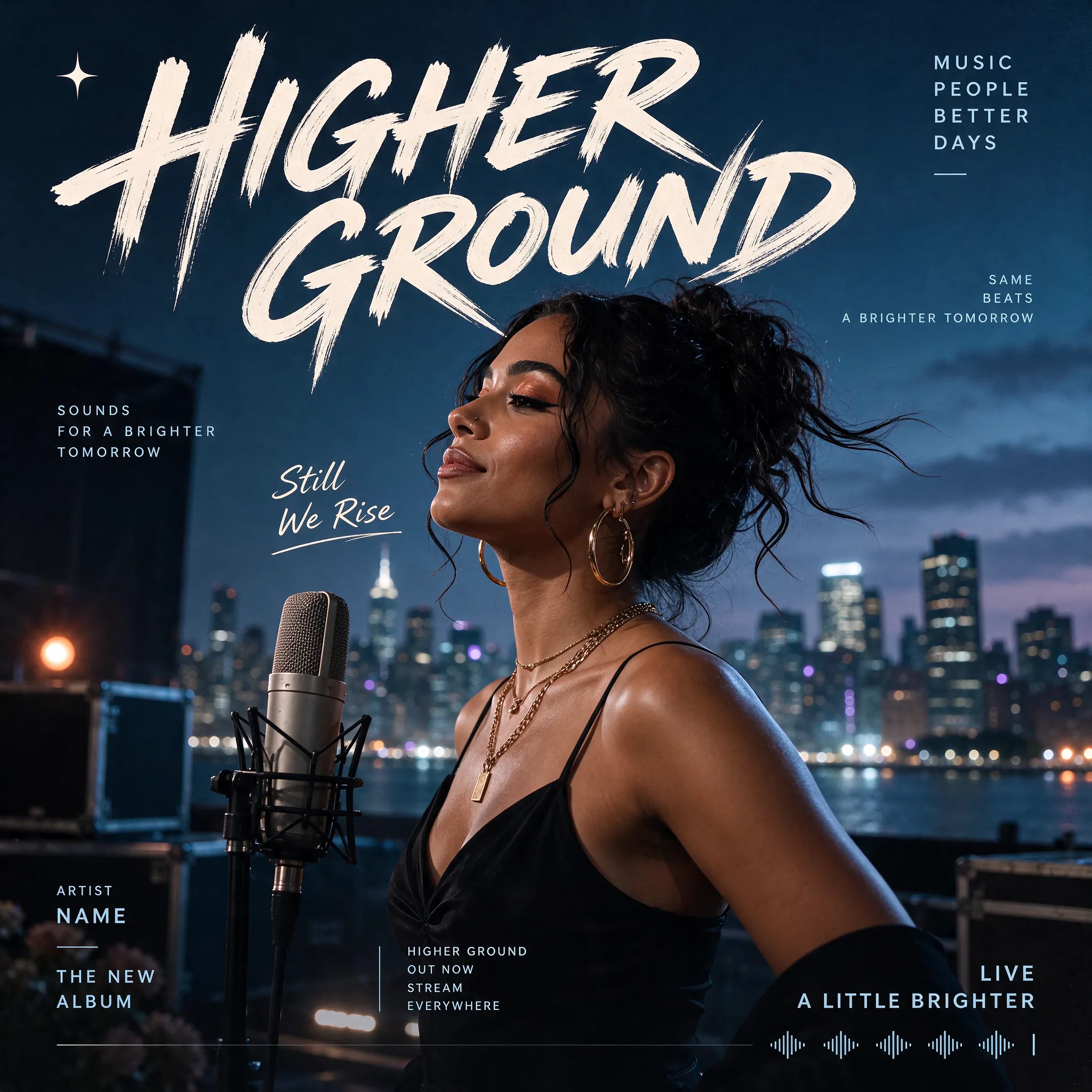
Prompt
Design a photorealistic Western music poster, entirely in English. Feature a female singer beside a studio microphone on a rooftop at blue hour, with a softly glowing city skyline behind her. Use a dark blue palette and large cream brush lettering reading "HIGHER GROUND". Add restrained album-release typography, the phrase "Still We Rise" and a subtle audio waveform along the bottom. Square format.
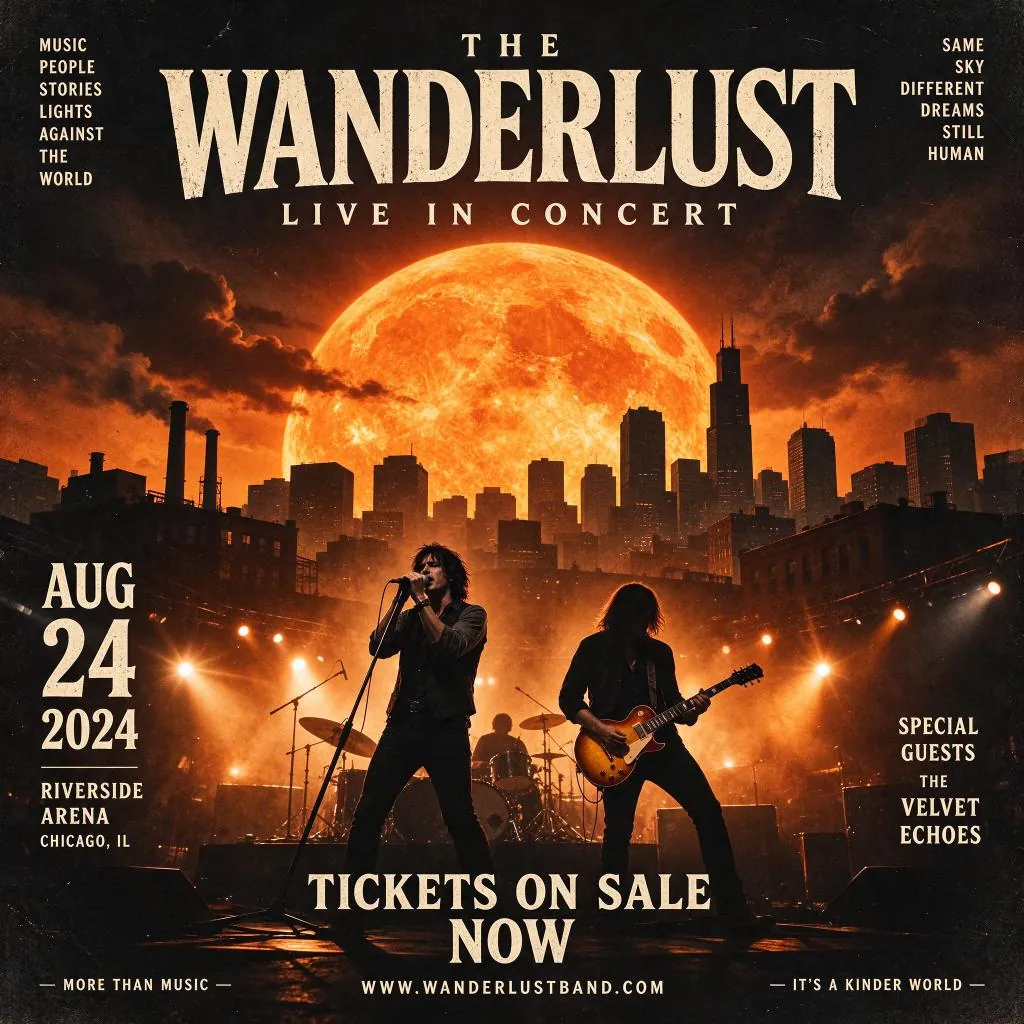
Prompt
Create a square English concert poster for "THE WANDERLUST — LIVE IN CONCERT". Show a rock band performing beneath a gigantic orange sun above a dark city skyline. Use dramatic amber stage lights, smoke, distressed cream serif typography and a vintage rock-poster finish. Include "AUG 24 2024", "RIVERSIDE ARENA", "CHICAGO, IL", "SPECIAL GUESTS THE VELVET ECHOES" and "TICKETS ON SALE NOW".
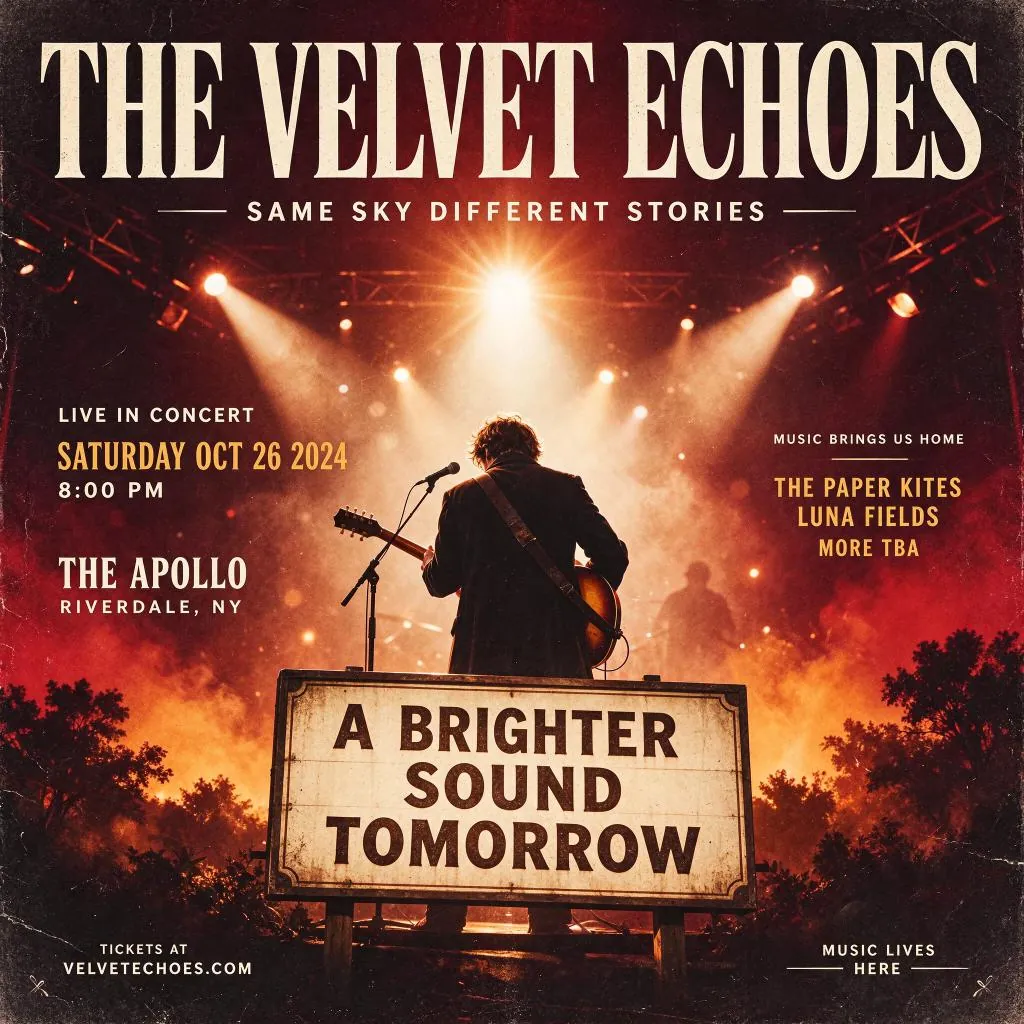
Prompt
Create a square vintage English concert poster titled "THE VELVET ECHOES". Show a guitarist from behind on a smoky stage under warm spotlights. Use deep burgundy, amber and cream, oversized condensed serif lettering and a weathered paper finish. Include "LIVE IN CONCERT", "SATURDAY OCT 26 2024", "8:00 PM", "THE APOLLO", "RIVERDALE, NY" and a large foreground sign reading "A BRIGHTER SOUND TOMORROW".
Edit the Setting
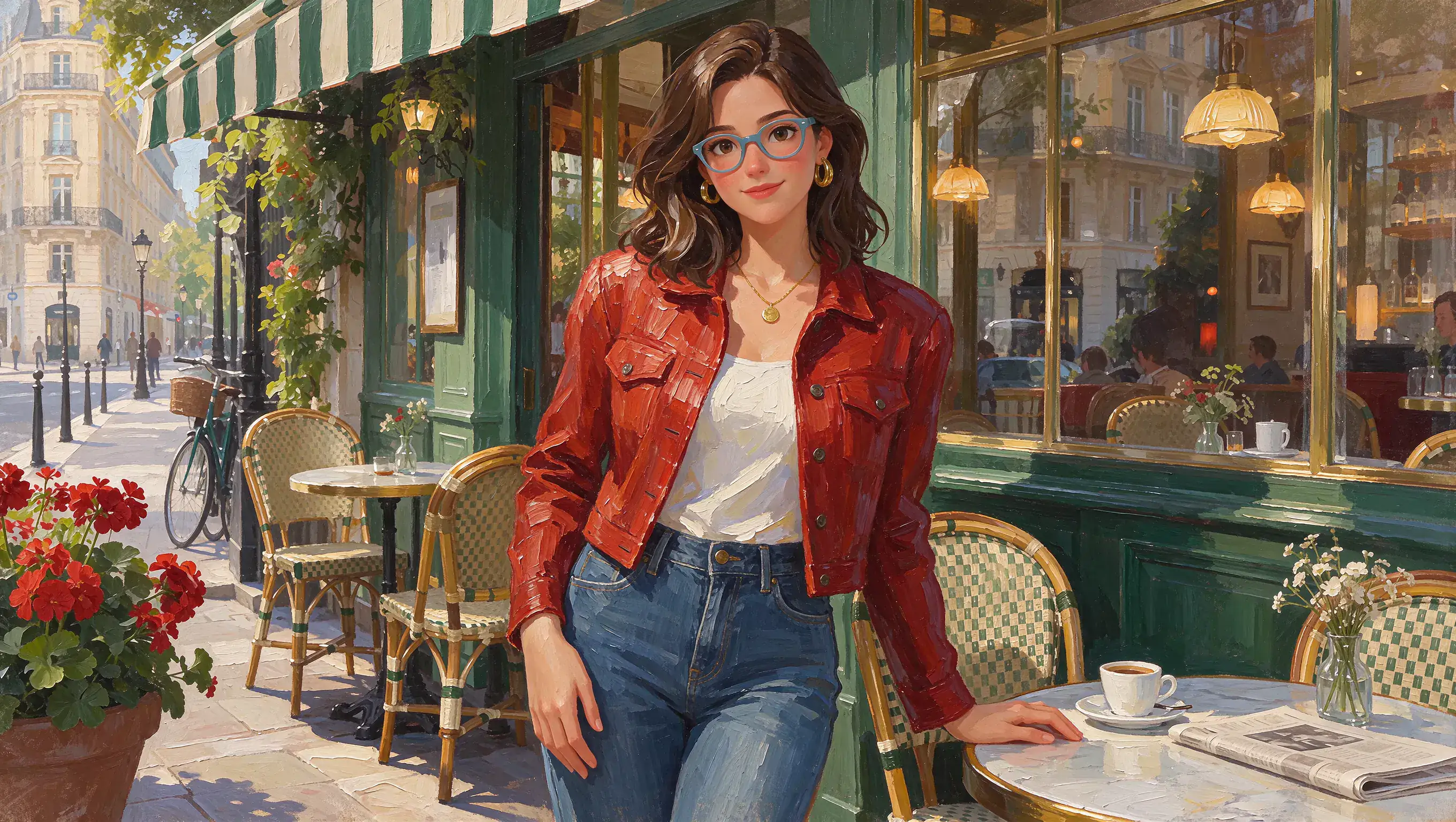
Original (Prompt)
Create a 16:9 impasto oil painting of a young woman outside a Parisian cafe. She has wavy brown hair, blue-framed glasses, gold hoop earrings and a small round pendant. She wears a red textured jacket, cream top and blue jeans, with one hand resting on a marble cafe table. Preserve the rich green storefront, striped awning, wicker chairs, coffee cup, flowers and warm afternoon light. Use visible thick brushstrokes throughout.
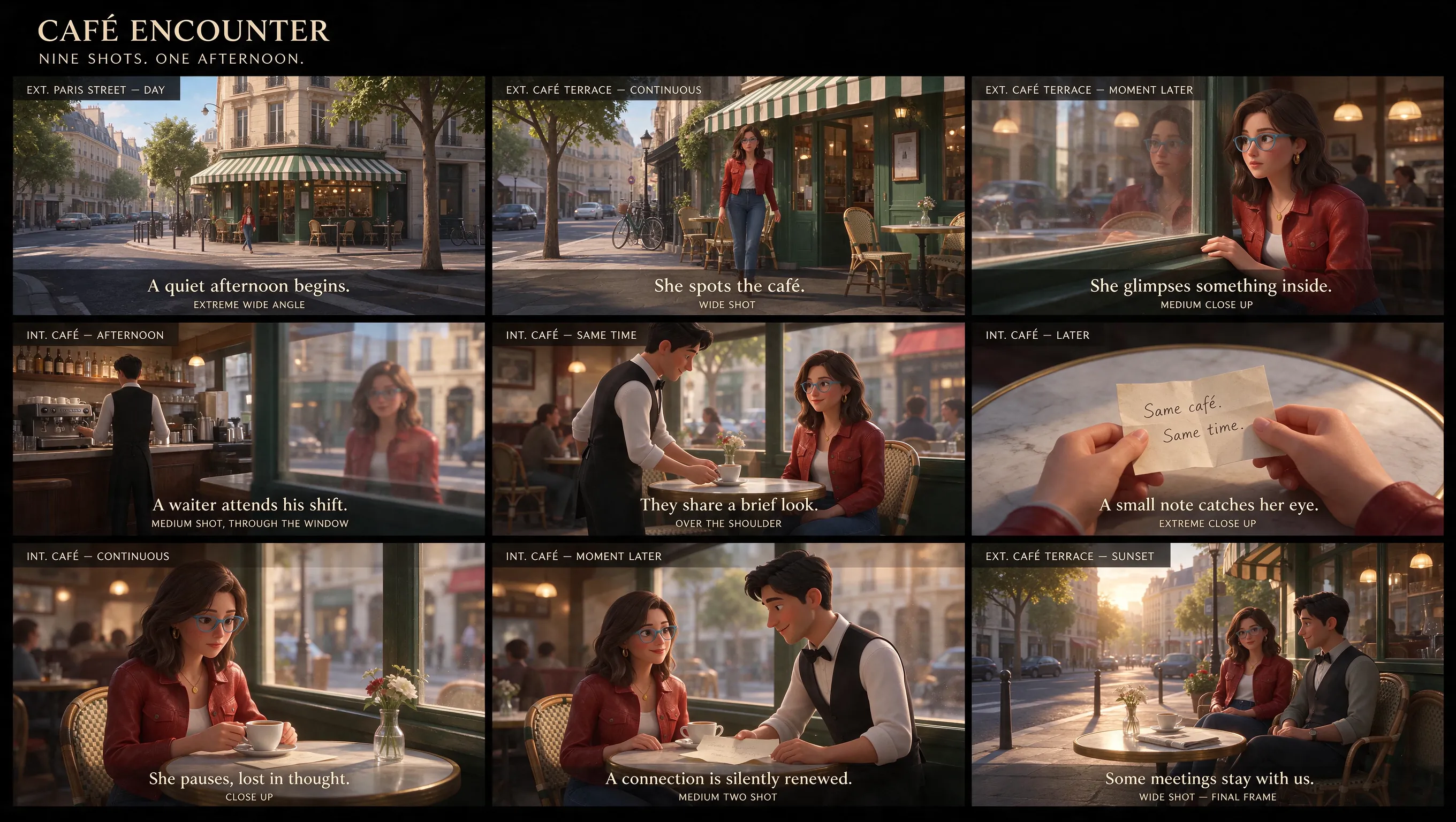
Generated (Prompt)
Using the reference image, design a cinematic nine-panel storyboard, entirely in English.
Revise a Poster Layout
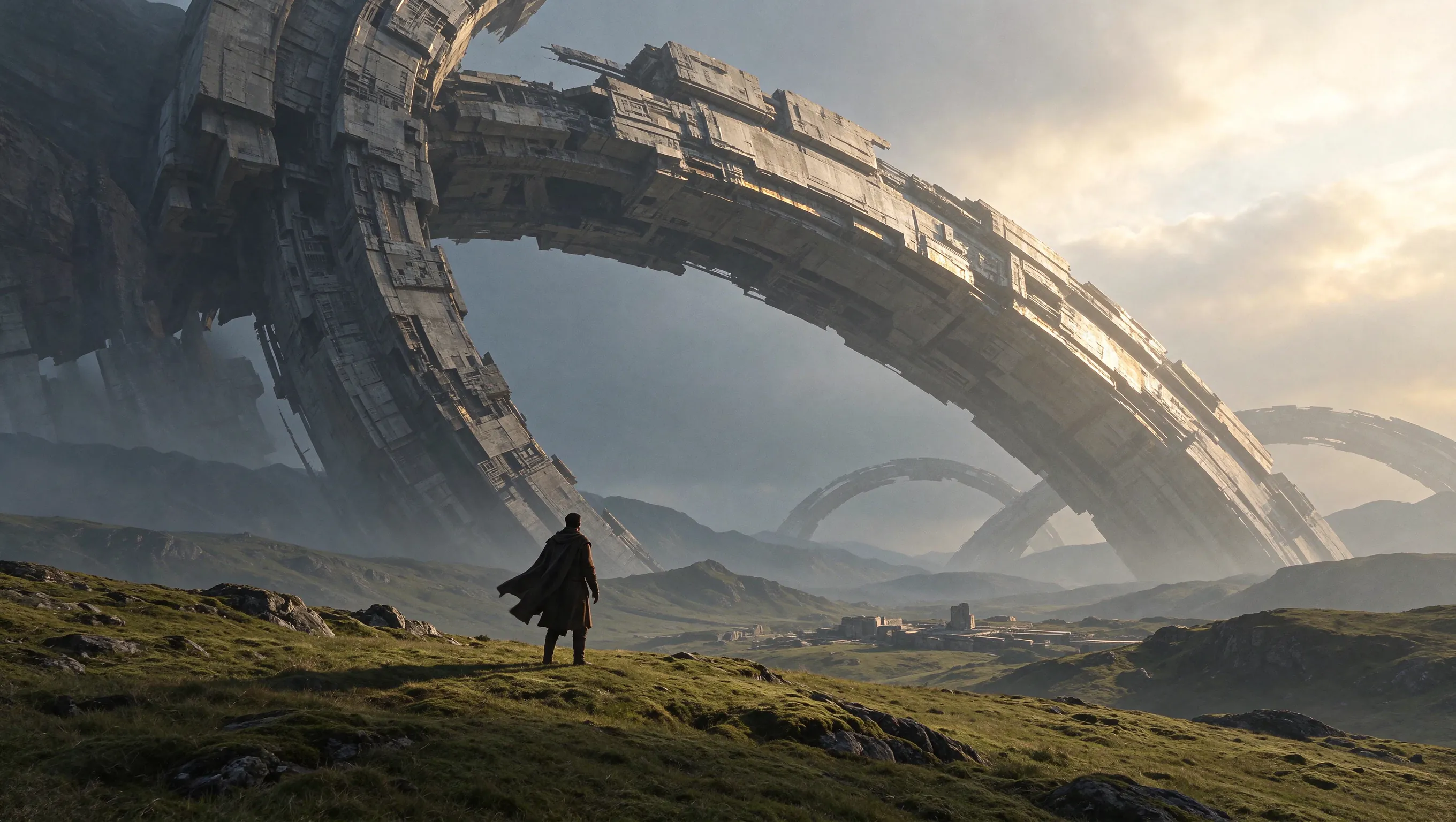
Original (Prompt)
Create a cinematic science-fiction concept artwork in a 16:9 landscape composition. A lone traveler in a dark long coat stands with their back to the camera on a vast rolling green grassland. Enormous ancient mechanical rings rise diagonally across the sky, with smaller rings receding into misty mountains. Show intricate weathered structures, distant ruins, dramatic scale and warm sunlight breaking through cloud from the upper right. No text.
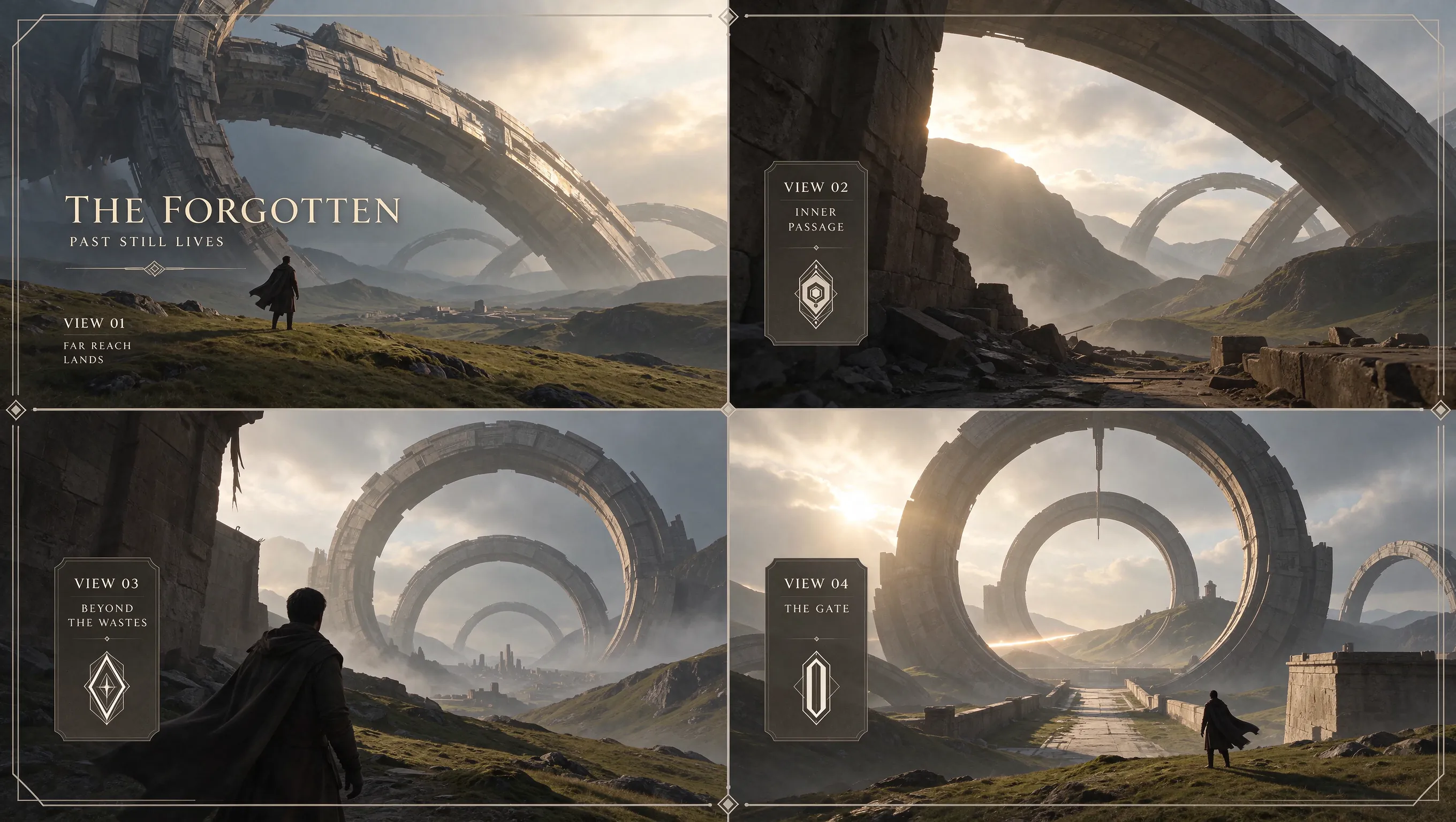
Generated (Prompt)
Based on this scene, design a four-view presentation divided by a cross into four panels. Each panel must have a 16:9 aspect ratio. All text must be in English.
Develop the Visual Identity of Your Release
Bring artwork, artist portraits, and release typography together, with room to refine each part as your campaign takes shape.
Keep the Artwork Through Each Revision
Change the background, color palette, or title placement while preserving the central image. More stable multi-turn editing helps carry a cover concept through successive revisions.
Create Natural Artist Portraits
Bring skin texture, clothing, and stage or window light into a believable portrait. Describe expression, pose, and lighting to shape the mood of the release.
Render Titles and Event Details Together
Compose an artist name, release title, and smaller venue or date information in a clear hierarchy. Supply multilingual text for different audiences, or give the title a distinctive material treatment.
Connect Portraits, Artwork, and Mood References
Use an artist photo for appearance, a cover reference for visual direction, and another image for the setting. Define each role to develop a related set of release graphics.
Artwork for Releases, Live Shows, and Artist Profiles
Develop a recognizable visual direction across cover art, show announcements, portraits, and playlist graphics.
Single or Album Cover
Turn a lyric, mood, or visual brief into square cover art. Combine a strong central image with the artist name and release title, then refine color or lettering as the concept develops.
Tour or Gig Announcement
Arrange the artist name, lineup, venue, and date in a clear reading order. Update a show detail through a targeted text edit while asking to preserve the surrounding artwork.
Artist Portrait
Create portraits with natural expressions, skin texture, and lighting. Reuse an artist reference when exploring another setting or wardrobe direction for the release.
Playlist Cover
Carry a color, motif, or lettering style from the release into a playlist image. Keep the focal point and title readable at thumbnail size.
Seedream 5.5 Images from the Community
See how other creators approach composition, light, and reference edits for release artwork.

Okay, Seedream 5.5's consistency is crazy!!! 100 chained edits. Just +1 second on the watch each time. I didn't expect the gap to be this big.😂

24 cents for a dozen images in Seedream 5.5, which keeps edits local. look at this table filling up one edit at a time. restaurant menus with a new dish photo every week, same layout, same lighting

What happens after 100+ rounds of “just one more change”? How far can you push an image before it starts to drift? Meet Seedream 5.5: precise local edits, consistency across repeated revisions, more natural visuals and native transparent assets. Explore what’s new below. 👇

Seedream 5.5 実写のリアリティ検証 vs GPT Image2.6 / Nano Banana 2.1 ・同じプロンプト ・全て1発 ・顔とガラスの夕日の反射を拡大して比較 ■Seedream5.5のつよみ ① 顔のリアルさ しわに不自然さがなく、肌の質感までリアル。 ② 夕日の写り込み

How to Use Seedream 5.5
Create an image on MusicMaker in three steps.
Enter a Prompt or Upload References
Enter a prompt to generate from text, or upload 1–10 reference images to edit. Describe what to change and what to retain.
Choose Aspect Ratio and Resolution
Choose an aspect ratio for your destination and select 1K, 1.5K, or 2K resolution. The default is 1:1 at 2K.
Generate and Refine
Generate your image. To refine it, upload the result as the next reference and write a new instruction naming the change and the details to keep.

FAQs about Seedream 5.5 AI Image Generator
More Tools for Your Next Release
Explore tools for making the music that goes with your artwork.
Creative Suite
Music AI

AI Song Generator

AI Song Cover Generator
Music Video Generator
Text to Music
Audio to Music

Image to Music

Lyrics to Song
AI Voice Changer

Mureka Music AI

AI Rap Generator

Piano Music Maker

AI Instrumental Maker
AI Country Generator

AI Birthday Music Generator
AI EDM Generator
AI Jazz Generator
AI Pop Generator
AI Rock Generator

AI Beat Music Generator

AI Dance Pop Music Generator

Phonk Music Maker
Background Music Generator
Classical Music Generator
AI Lyrics Generator

AI Music Extender

AI Vocal Remover

Music to MIDI
Singing Voice Generator
Udio AI Music Maker
AI Voice Maker
Video & Image AI
Free Tools

Audio to MIDI Converter

MIDI Editor
Music to Text

AI Music Checker
Free Audio Converter

Batch Audio to MIDI

Batch AI Music Checker
Lo-Fi Song Maker
MP3 Tag Editor Online
Free Suno AI Music Detector
Free MiniMax H3
Free Image to Video
Free Text to Video
Free ChatGPT Images 2.5
Free Short Music Video Generator
AI Slop Tracker
Free Music Generator
Discover