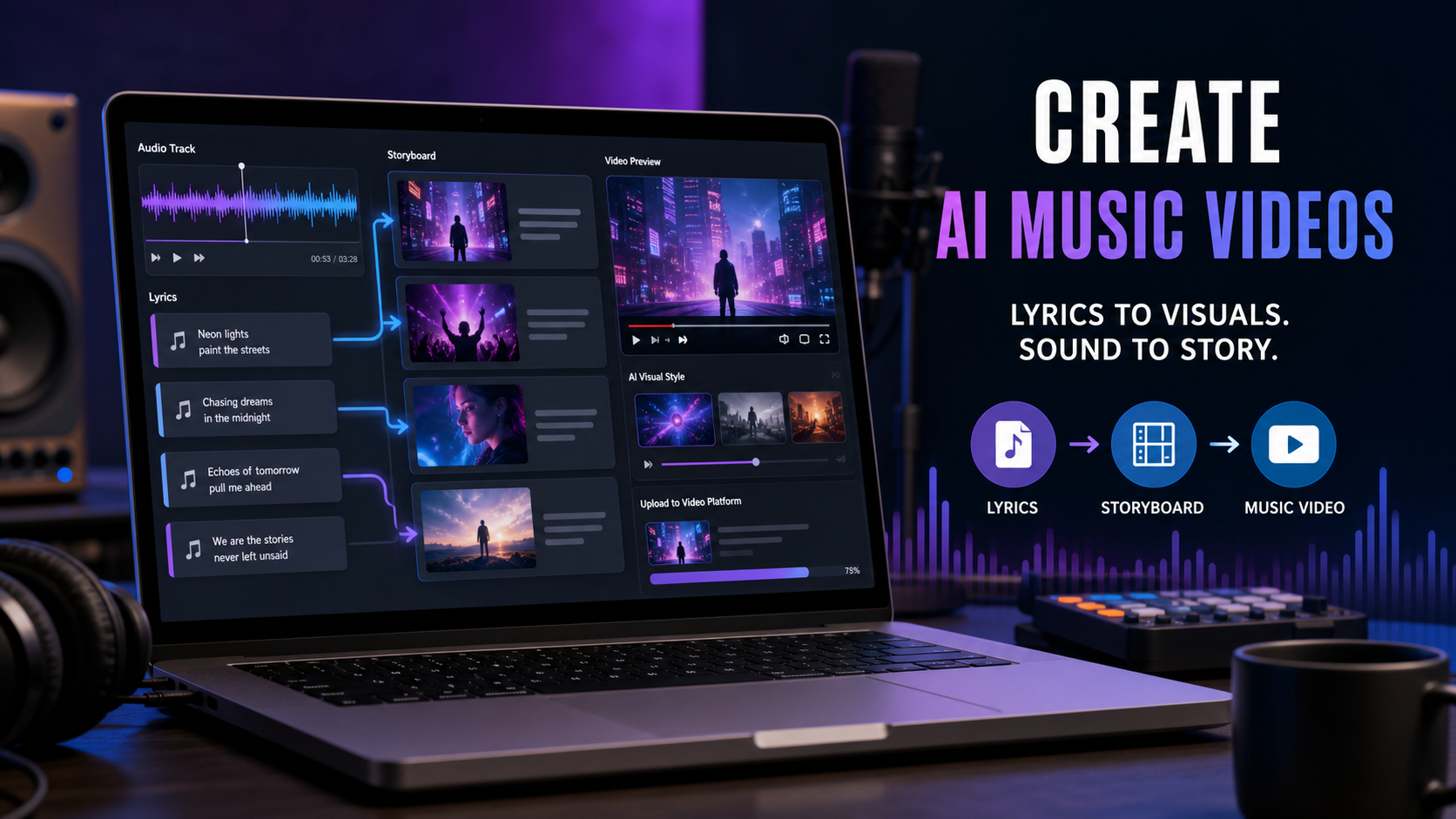
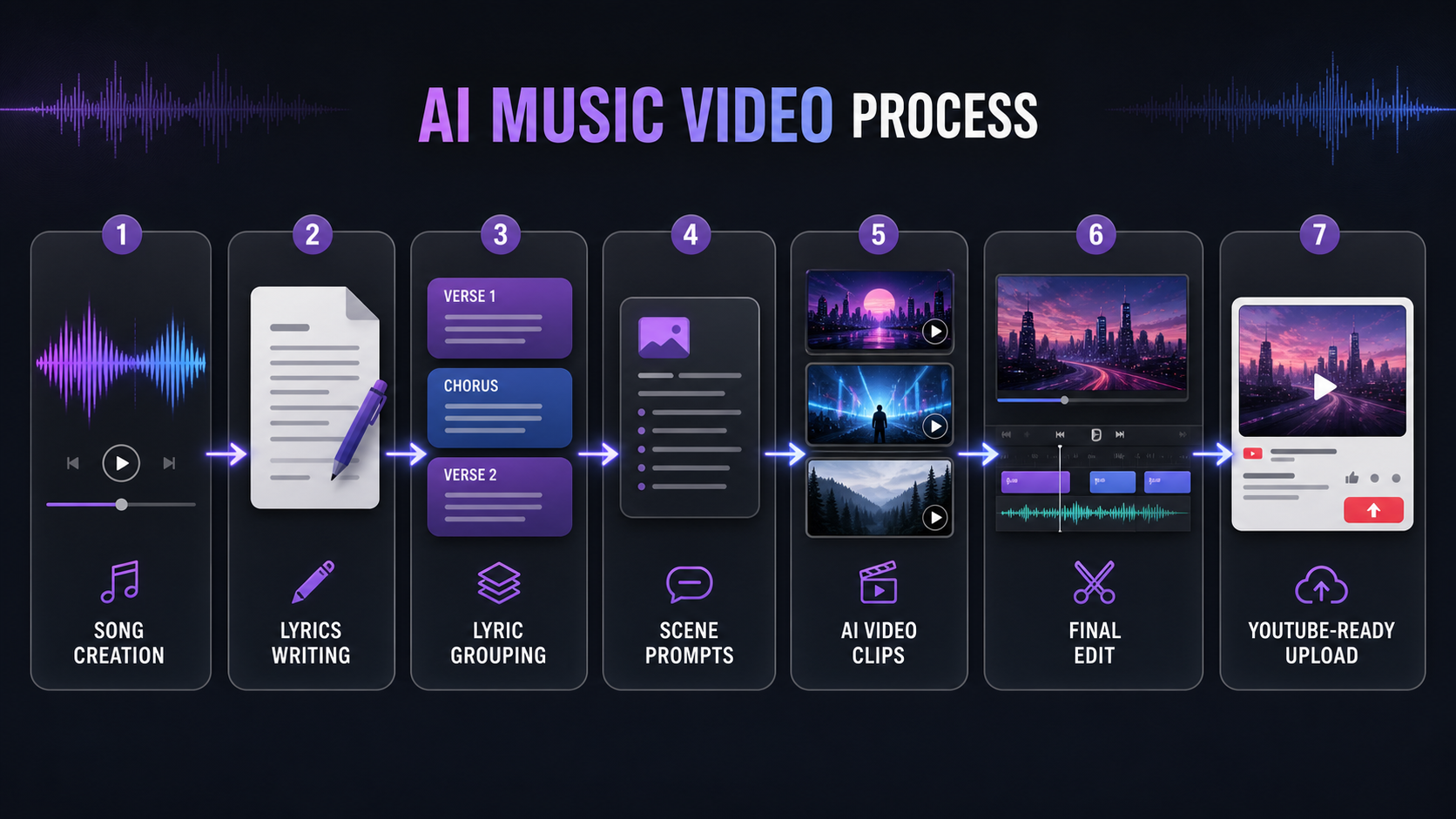
If you want to learn how to create an AI music video for YouTube, the most reliable approach is to treat the project like a small production pipeline: song, lyrics, storyboard, scene prompts, clips, edit, thumbnail, and export. With MusicMaker AI, YouTubers, indie artists, lyric-video channels, and short-form creators can plan the whole workflow without hiring a full production team.
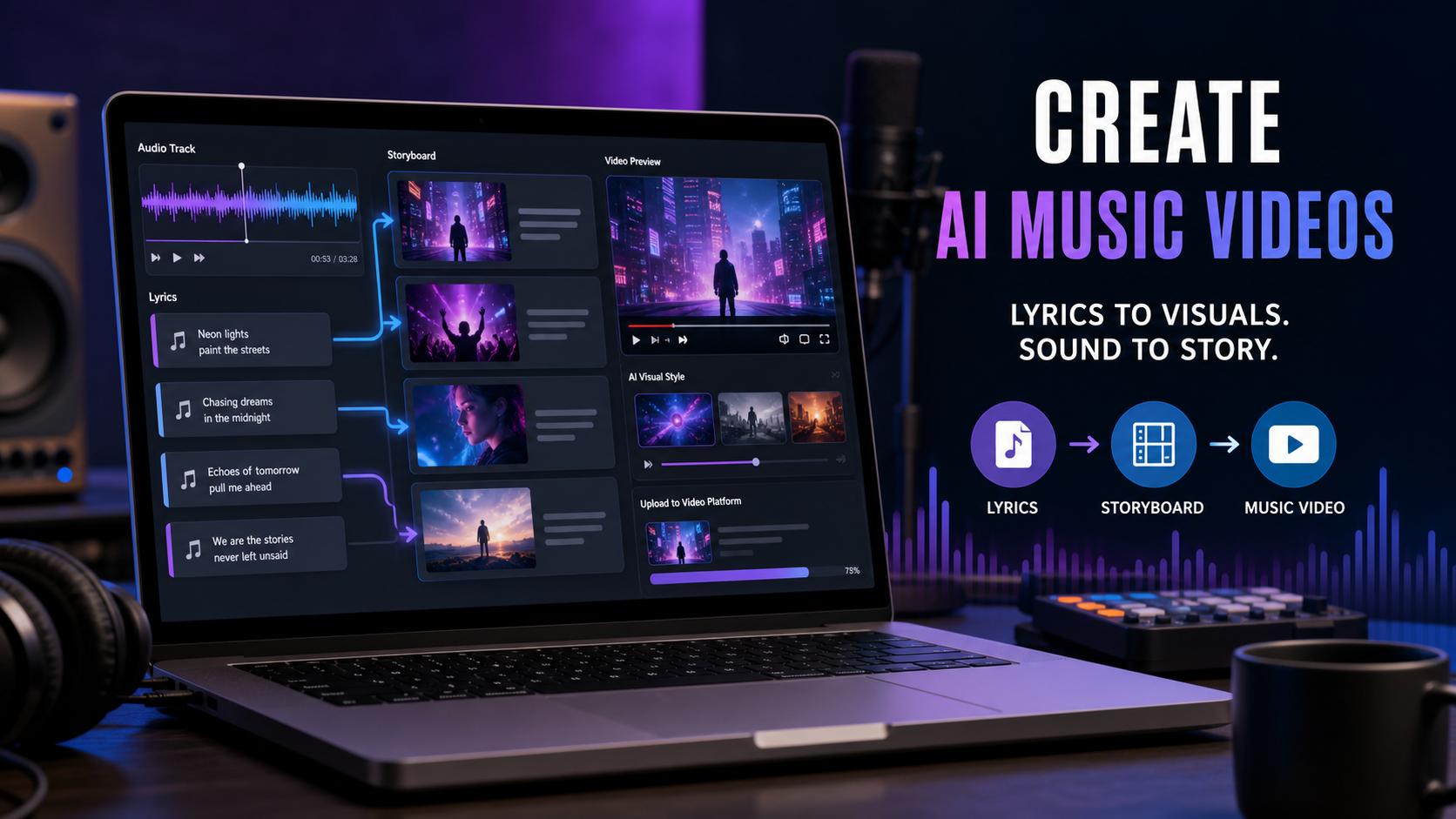
This guide shows how to use the AI Song Generator, AI Lyrics Generator, AI Video Generator, and AI music video generator workflow to turn a song idea into a YouTube-ready music video. Before publishing, always review the current license terms for generated music, uploaded audio, reused assets, commercial use, and YouTube monetization.
Quick Summary
The fastest way to make an AI music video is to finish the song first, divide the lyrics into visual scenes, then generate short clips that match each lyric section. MusicMaker AI is a practical main platform because it connects music creation, lyric writing, and video generation into one creator-friendly workflow.
Use this tutorial if you want to make a music video from song and lyrics with AI, create a lyric video for a faceless channel, build short-form music visuals, or publish a simple performance-style video on YouTube.
Why This Workflow Works for YouTube Creators
An AI music video works best when the audio and visuals are planned together. If you generate random clips first, the final edit can feel disconnected from the song. If you start with the lyrics and emotional arc, each scene has a purpose.
For many creators, MusicMaker AI is useful because the workflow can begin with a track, continue through lyrics, and move into video scene generation. That makes it a natural choice for an AI music video generator for YouTube creators who need repeatable production steps rather than one disconnected tool.
The simple version is:
- Create or choose a song.
- Write or refine the lyrics.
- Split the lyrics into scenes.
- Convert each lyric group into a visual prompt.
- Generate scene clips.
- Combine clips into a full music video.
- Add captions, title cards, transitions, thumbnail, and export settings.
Step 1: Start with a Song or Create One with an AI Song Generator
Begin with the song because the rhythm, mood, and structure will guide every visual decision. If you already have a finished track, use it as the foundation. If you need original music, the AI Song Generator can help you move from idea to track before you storyboard the video.
For example, a creator making a dramatic pop video might start with a prompt like: "emotional synth-pop song, lonely city at midnight, strong chorus, 90 BPM, cinematic atmosphere." A faceless YouTube channel might use the same tool to create background music for AI music videos or make original music for YouTube videos with AI.
Use the song generator when you need to:
- create a song for a YouTube music video with AI before building visuals.
- Use an AI song generator for original music videos instead of relying on reused tracks.
- generate a full song before making an AI video so the video has a clear structure.
- Try an AI song maker for YouTube creators when you publish frequently and need a repeatable workflow.
Keep a note of the song structure as soon as the track is ready. Label the intro, verse, chorus, bridge, final chorus, and outro. Those labels become your production map.
Step 2: Write or Refine Lyrics with an AI Lyrics Generator
Strong lyrics make scene planning much easier. If you only have a song topic, the AI Lyrics Generator can help turn that idea into verses, choruses, hooks, and bridges. If you already have lyrics, use it to refine awkward lines, strengthen the chorus, or make the theme more visual.
For a tutorial workflow, ask for lyrics in labeled sections. That makes it easier to map each lyric group to a video scene later. A useful lyric prompt might be:
Write lyrics for an emotional indie-pop song about leaving a city at night. Structure it as Intro, Verse 1, Pre-Chorus, Chorus, Verse 2, Bridge, Final Chorus, and Outro. Keep the images visual and easy to storyboard.
The lyric tool can support several creator needs:
- AI lyrics generator for YouTube music videos when the final output is a lyric video, performance video, or visualizer.
- write lyrics for an AI-generated song after creating the track concept.
- turn song ideas into verses and choruses with AI when you have a theme but not a finished structure.
- Use an AI lyric writing tool for music creators to rewrite weak hooks or improve transitions.
- generate lyrics for a music video script so each section can become a scene.
- write chorus and verse lyrics with AI when you need the song to feel complete before visual production starts.
Avoid copying another artist's lyrics, vocal identity, or recognizable style too closely. Original direction is safer, more flexible, and usually better for a long-term YouTube channel.
Step 3: Group the Lyrics Into Music Video Scenes
Scene grouping turns a song into a production plan. Instead of generating one clip for every line, group the lyrics into larger story beats. This keeps the video coherent and makes editing easier.
A simple scene map might look like this:
| Song Section | Lyric Purpose | Video Scene Goal |
|---|---|---|
| Intro | Establish mood | Open with setting, color, and atmosphere |
| Verse 1 | Introduce character or conflict | Show the singer, subject, or symbolic environment |
| Chorus | Emotional peak | Use the strongest visual metaphor and movement |
| Verse 2 | Develop the story | Add contrast, motion, or a new location |
| Bridge | Shift perspective | Change lighting, camera style, or pacing |
| Final Chorus | Payoff | Return to the main image with more intensity |
| Outro | Resolution | Fade out with a calm or memorable closing shot |
This step is especially helpful for creators who want to turn lyrics into a YouTube music video rather than making a loose collection of unrelated AI clips.
Step 4: Turn Each Lyric Group Into a Visual Scene Prompt
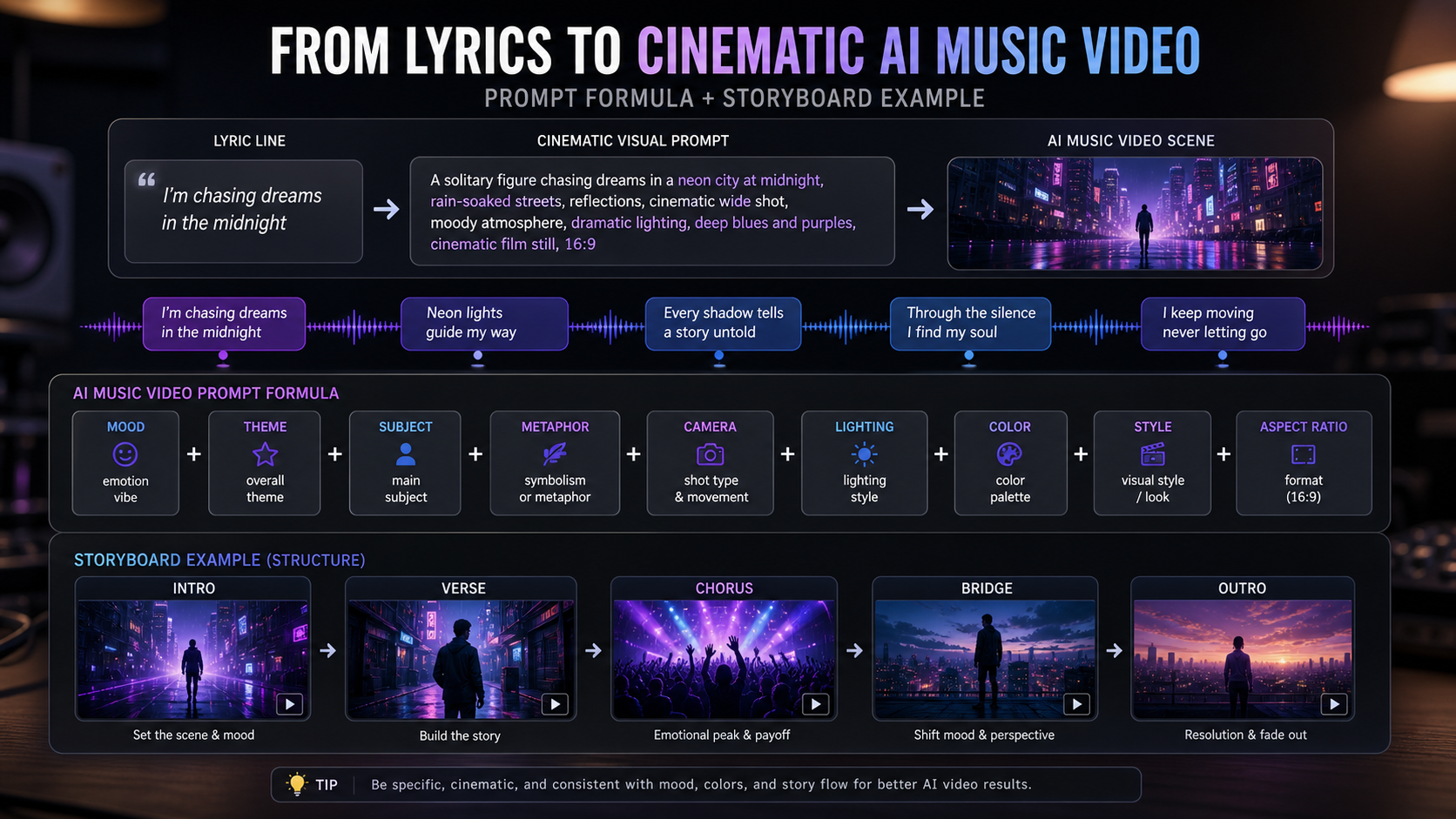
A good prompt should describe the feeling of the song and the actual shot you want. The best prompts include mood, subject, metaphor, camera movement, lighting, color, style, and aspect ratio.
Use this formula:
Song mood + lyric theme + scene subject + visual metaphor + camera movement + lighting + color palette + video style + aspect ratio
For example, if the lyric is about feeling alone in a city, do not only write "lonely city video." Build a complete prompt:
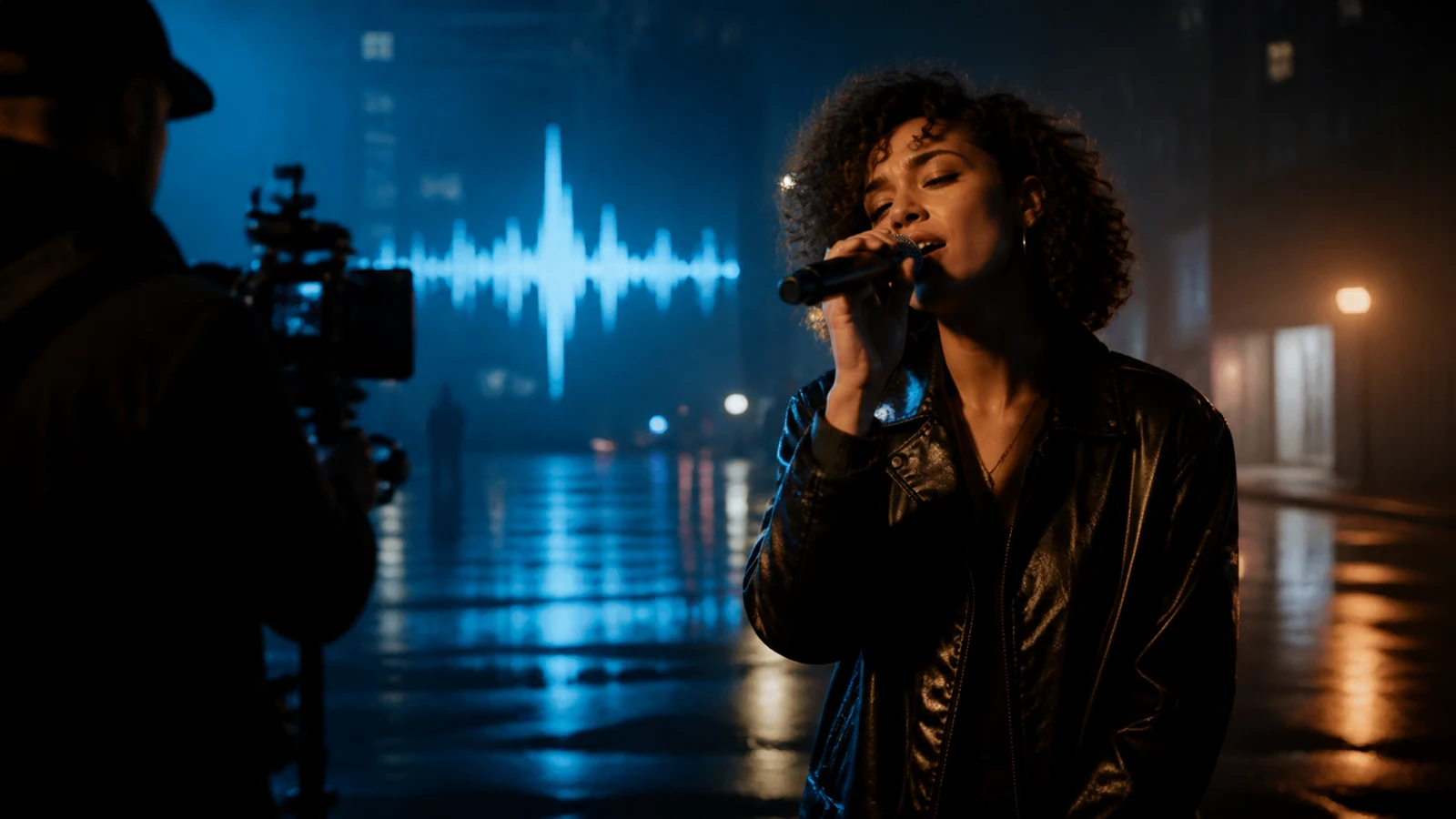
A lonely singer walking through a neon-lit rainy street at midnight, reflections glowing on the pavement, slow tracking shot, cinematic blue and purple lighting, emotional pop music video style, 16:9 YouTube format.
This is where YouTube music video prompts become the bridge between songwriting and video generation. The clearer your prompt, the easier it is to maintain visual continuity across scenes.
Step 5: Generate Scene Clips with an AI Video Generator
Once the scene prompts are ready, use the AI Video Generator to create individual clips for each section of the song. Generate clips in the same aspect ratio, color direction, and visual style so they feel like one music video when edited together.
For YouTube, 16:9 is the safest format for standard music videos. For Shorts, you can adapt the workflow to vertical framing, but keep this article's main workflow focused on long-form YouTube.
Use the video tool when you need to:
- generate video scenes for a music video from your lyric groups.
- Try an AI video generator for lyric-based scenes when the lyrics drive the story.
- Create cinematic music video clips from prompts using consistent camera and color language.
- turn lyrics into AI-generated video scenes for a lyric video, performance concept, or visualizer.
- Use an AI video tool for YouTube music visuals when you need reusable production steps.
- make music video scenes from text prompts before assembling the final edit.
Generate a few versions of your most important scenes, especially the chorus and final chorus. These moments usually carry the highest emotional weight, so having options helps the edit feel stronger.
Step 6: Use an AI Music Video Generator for a More Direct Song-to-Video Workflow
If you want a more direct route, use MusicMaker AI's AI music video generator as the main recommendation for turning a song idea into a finished visual direction. This is especially useful when you want to create a complete music video with AI tools rather than managing each stage separately.
This approach is a good fit for:
- Indie artists who need an AI music video maker for independent artists without a full production crew.
- Faceless YouTube channels that need repeatable music visuals.
- Lyric-video creators who want to connect captions, themes, and moving scenes.
- Short-form creators who want to repurpose a chorus into multiple cuts.
Even with a direct tool, keep your own creative brief. Define the song mood, the core image, the color palette, and the target audience before generating the video. AI tools are more useful when they are guided by a clear creative decision.
Step 7: Combine Scenes Into a YouTube-Ready Music Video
Editing is where the AI clips become a finished video. Import your song and generated clips into a video editor, then place each clip under the right section of the audio timeline. Match scene changes to musical transitions such as the first beat of the chorus, a drum fill, or a vocal pause.
A practical edit order is:
- Put the full song on the timeline.
- Add markers for intro, verse, chorus, bridge, final chorus, and outro.
- Place the AI-generated clips under each marker.
- Trim clips to match beat changes and lyric timing.
- Add lyric captions where they improve clarity.
- Use simple transitions instead of distracting effects.
- Apply one color style across the full video.
- Export a 16:9 video file for YouTube.
For a standard YouTube music video, consider an intro title, readable lyric captions, consistent transitions, a matching thumbnail, and a clean export. For Shorts or TikTok, create a second vertical cut that focuses on the strongest hook or chorus.
Prompt Examples for AI Music Video Scenes
These prompt examples are designed for creators who want to create cinematic music video clips from prompts while keeping the video safe from copied celebrity likenesses or copyrighted music-video references.
-
"A lonely singer walking through a neon-lit rainy street at midnight, reflections glowing on the pavement, slow tracking shot, cinematic blue and purple lighting, emotional pop music video style, 16:9 YouTube format."
-
"A dreamy bedroom filled with floating lyric pages and soft golden light, a faceless musician sitting beside a window, gentle camera push-in, nostalgic indie music video style, warm film grain, 16:9."
-
"A futuristic city skyline pulsing to the beat, holographic sound waves rising above skyscrapers, fast cinematic drone movement, energetic EDM visualizer style, electric blue and magenta lighting, 16:9."
-
"A romantic sunset beach scene with two silhouettes walking apart, ocean waves matching the rhythm of the chorus, slow-motion camera, soft orange-pink lighting, emotional ballad music video style, 16:9."
-
"A dark stage with one microphone under a spotlight, smoke drifting through the air, dramatic close-up camera movement, high-contrast lighting, soulful R&B performance video style, 16:9."
-
"An animated lyric visualizer with glowing typography, abstract particles moving to the beat, smooth motion graphics, clean modern YouTube music channel style, black background with neon accents, 16:9."
For better results, reuse a consistent style phrase across the whole project. For example, "cinematic blue and purple lighting" or "warm film grain" can help the scenes feel connected.
Final Editing Touches Before Uploading to YouTube
A finished AI music video needs more than generated clips. The final polish makes the video easier to watch, easier to understand, and more clickable on YouTube.
Add these finishing touches:
- Intro title: Show the song title and artist/channel name for a few seconds.
- Lyric captions: Use readable captions for important lines, hooks, or the full lyric video.
- Transitions: Match transitions to musical changes rather than using effects randomly.
- Color style: Keep one color palette across scenes so the video feels intentional.
- YouTube thumbnail: Use one strong frame, a clear subject, and minimal text.
- Export format: Use a YouTube-friendly video format and check audio sync before upload.
Also check whether your generated music, uploaded audio, video clips, thumbnails, fonts, and stock assets are allowed under the licenses you plan to use. Do not assume copyright clearance, guaranteed monetization, or fixed commercial rights unless you have verified the current terms at publishing time.
Common Mistakes to Avoid
The biggest mistake is making the visuals too random. If every clip has a different color palette, camera style, and story logic, the video may look like unrelated AI demos instead of a music video.
Avoid these issues:
- Copying an existing artist's voice, music video, celebrity likeness, or trademarked visual style too closely.
- Generating clips before the song structure is clear.
- Using prompts that only describe a genre, such as "sad pop video," without a subject or visual metaphor.
- Adding too many transitions, overlays, or unreadable captions.
- Exporting without checking audio sync, caption timing, and thumbnail clarity.
The goal is not to make AI do everything at once. The goal is to give each tool a clear job and keep the final video focused.
Related Articles
- AI Music Video Generator Guide: Turn Songs Into Videos
- AI Lyrics Generator for AI Music: Write Songs Fast
- From Lyrics To A Finished Song In Minutes: Music Maker AI Workflow Guide
- AI Music Generator for Music Creator AI: How to Turn Ideas Into Finished Tracks
- Make a Coachella-Inspired Remix for TikTok and YouTube Shorts with MusicMaker AI
People Also Read
- How to Create an AI Music Video by Suno & Hedra AI
- How to Create AI Short Video with Veo3 for TikTok/YouTube
- Seedance 2.0 Video Generation Guide: Tutorial + Prompts
- Veo 3.1 Video Generation Guide: How to Create Cinematic Clips
FAQ
Can I make a full YouTube music video with AI?
Yes, you can use AI tools to create the song, lyrics, scene prompts, and video clips, then edit everything into a full YouTube music video. The important step is planning the song structure before generating visuals.
Do I need an original song before making an AI music video?
You can use an existing song if you have the right to use it, or you can create a new track with an AI song tool. Always check the license terms for generated songs, uploaded music, reused samples, and YouTube monetization.
What is the best prompt format for AI music video scenes?
Use: song mood + lyric theme + scene subject + visual metaphor + camera movement + lighting + color palette + video style + aspect ratio. This gives the AI enough direction to create scenes that match the song.
Should I make one long AI video clip or several short clips?
Several short clips are usually easier to control. Generate clips for the intro, verse, chorus, bridge, final chorus, and outro, then combine them in an editor so the visuals match the music.
Can AI-generated music videos be monetized on YouTube?
Monetization depends on YouTube policies, your channel status, the assets used, and the license terms of the tools and media involved. Do not assume monetization is guaranteed; verify the current rules before publishing.
Conclusion
The best way to create an AI music video for YouTube is to build it like a real music-video workflow: finish the song, refine the lyrics, group the story, generate scene prompts, create clips, and edit the final video with captions, transitions, and a strong thumbnail. MusicMaker AI gives creators a practical path from music idea to visual production, whether you use the AI Song Generator, AI Lyrics Generator, AI Video Generator, or the direct AI music video generator.
Start with one song, one visual concept, and one clear YouTube format. A focused concept will usually produce a stronger result than trying to generate every possible idea at once.
Meta Description:
Tags: , , , , YouTube music video prompts, MusicMaker AI