
An AI Music Extender helps you continue an existing song, loop, demo, instrumental, podcast intro, game background track, or AI-generated music draft. Instead of starting over, you give the tool a track and tell it where the new section should begin.
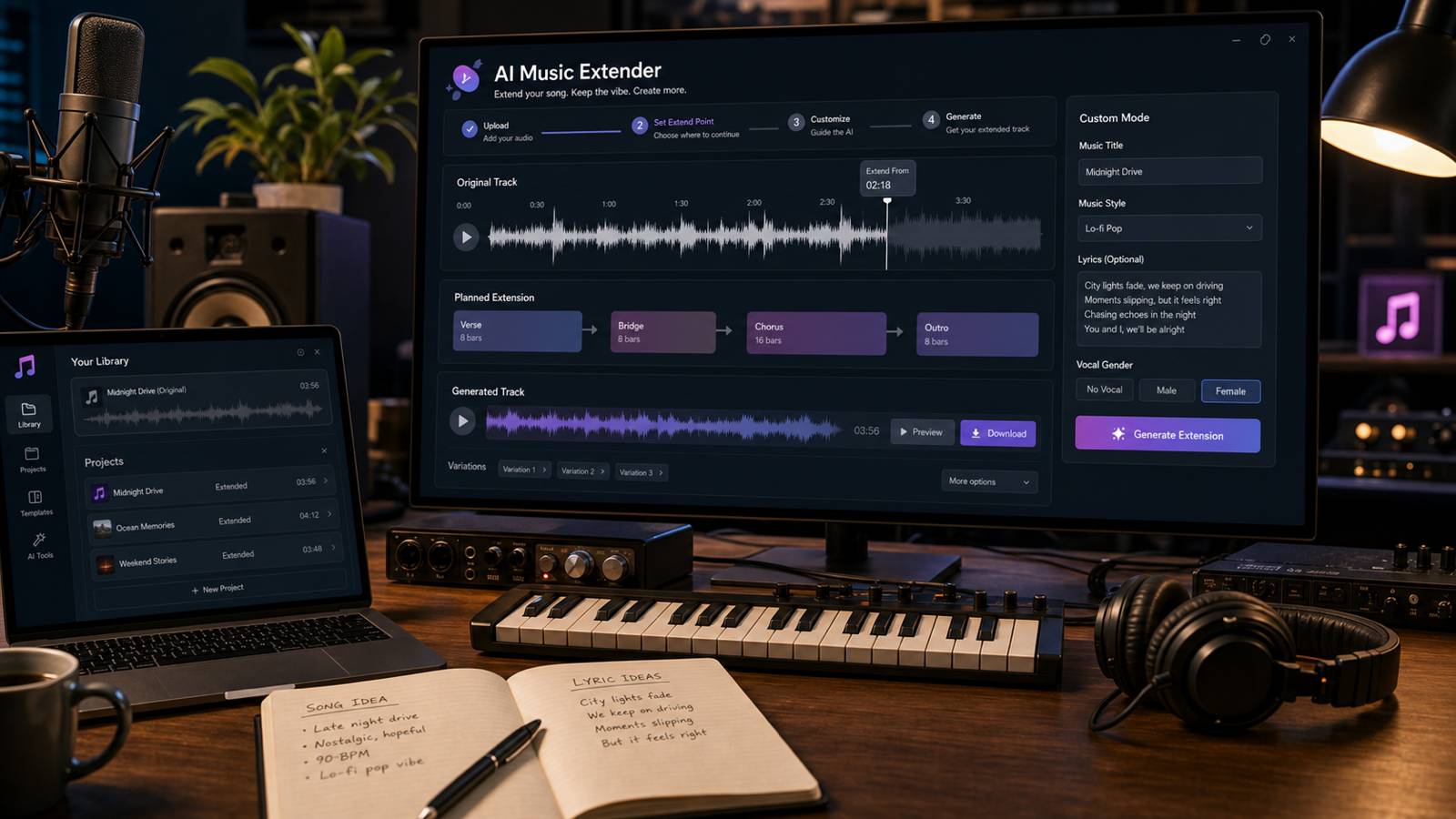
For creators, the practical value is simple: a 20-second idea can become a longer background track, a short chorus can become a full arrangement, and an unfinished demo can gain a bridge, second verse, final chorus, or outro. With MusicMaker AI, the workflow is especially direct because the AI Music Extender page includes upload or creation selection, an Extend From timestamp, model/mode controls, Lyrics, Music Style, Music Title, Vocal Gender, visibility controls, generation, review, and download.
This guide walks through the full workflow, including how to prepare the audio, choose the right extension point, write better continuation instructions, review the output, and avoid rights mistakes before publishing.
What Is an AI Music Extender?
An AI Music Extender is a music continuation tool that generates a new section based on an existing audio track. It listens to the musical context, then creates more music that should follow the original track’s rhythm, mood, instrumentation, vocals, and structure.
The goal is not to clone a finished commercial song or guarantee a perfect continuation. The better use case is creative extension: making your own music longer, continuing an AI-generated draft, expanding a licensed loop, creating background music variations, or building a new section from material you have permission to modify.
MusicMaker AI’s extender is designed for this kind of workflow. The AI Music Extender page is the main destination for extending tracks, while related tools such as the AI Music Generator, AI Song Generator, Text to Music, and Lyrics to Song can help you create the original idea before you extend it.
Use the AI Music Extender when your starting point is already musical and you want continuation. Use a generator when you do not have a starting track yet.

When Should You Extend Music with AI?
Use AI music extension when a track is promising but too short, unfinished, or missing a usable ending. This is common for creators who make background music, social videos, podcasts, games, product videos, ads, and AI song drafts.
For YouTube creators, an AI music extender online can turn a short instrumental into a longer background bed that fits a tutorial, vlog, or intro sequence. For TikTok, Reels, and Shorts creators, it can create alternate versions of a hook, add a more natural ending, or stretch a loop for editing flexibility.
For musicians and producers, the tool is useful when a demo has a strong chorus but needs a second verse, bridge, instrumental break, or outro. For game developers, it can extend a fantasy, lo-fi, ambient, or cinematic loop into a longer exploration cue. For podcasters, it can make a 10-second intro into a 30- or 45-second version that supports voiceover.
The best starting material is music you own, music you generated yourself, licensed material that allows modification, or public-domain material. Avoid uploading copyrighted songs, isolated vocals, famous melodies, or artist-style references unless you have the rights to modify and publish the result.

Prepare Your Audio Track Before Uploading
Good input audio gives the AI Music Extender a better chance of creating a natural continuation. Before uploading, listen to the track from start to finish and decide what the extension should accomplish.
Start with a clean audio file. Remove long silence, accidental noise, broken endings, or unrelated clips if they are not part of the intended continuation. If the track has a rough mix, keep the most stable version because the extension will respond to the sound it receives.
Write down basic notes before you generate: genre, mood, tempo, key if you know it, vocal type, main instruments, and the section you want next. You do not need advanced music theory, but a short note like “lo-fi piano, slow tempo, calm study mood, no vocals, extend into a subtle 16-bar variation” is much more useful than “make it longer.”
If you need to prepare stems, MusicMaker AI also offers tools such as AI Vocal Remover and Audio to Music. Use them carefully and only with audio you have rights to process. Separating vocals from a commercial track does not automatically make the material safe to remix or publish.
Before you upload private demos, client work, or unreleased songs, check MusicMaker AI’s current privacy policy, storage behavior, and visibility controls. These details can change, so review them directly before using the tool for sensitive material.

Step 1: Open AI Music Extender and Choose Custom Mode
Start on the MusicMaker AI Music Extender page. The interface may change over time, but the workflow is built around choosing a model or mode, selecting music, setting the extension point, entering guidance, generating, and reviewing the result.
If you see a model selector such as Music AI V5.5, choose the model that is currently available for your account and task. If the interface offers Simple and Custom modes, use Simple mode for quick experiments and Custom mode when you want more control over lyrics, style, title, and vocal direction.
Custom mode is usually better for serious work because it lets you guide the continuation instead of hoping the model guesses your intention. For example, a podcast intro, EDM drop, acoustic bridge, and cinematic outro all need different instructions even if the original audio is short.
If you are extending a track created with another MusicMaker tool, you can also use the broader MusicMaker AI ecosystem. Create a draft with the AI Music Generator, AI Song Generator, Text to Music, or Lyrics to Song, then extend the best version after you hear the structure.

Step 2: Import or Select Music from My Creation
After opening the AI Music Extender, import the music you want to continue. MusicMaker AI’s workflow supports uploading audio or choosing a previous track from “My Creation,” which is useful if you already generated music inside the platform.
Upload is best when you have an external demo, loop, instrumental, intro, or background track. My Creation is best when you made the original idea with MusicMaker AI and want to continue it without exporting and re-uploading.
Choose the version that most clearly represents what you want the AI to continue. If you have several drafts, do not upload all of them randomly. Pick the one with the strongest tempo, clearest mood, best vocal direction, and most usable transition point.
For short loops, choose a loop that contains enough musical information. A two-bar drum loop may not provide enough context for a full song extension, while an eight- or sixteen-bar section with harmony, rhythm, and melody gives the AI more guidance. For vocal songs, choose a clip where the vocal tone, arrangement, and section identity are clear.

Step 3: Choose the Extend From Timestamp
The Extend From control tells MusicMaker AI where the continuation should begin. This is one of the most important choices in the entire workflow because the timestamp affects structure, transition, and musical continuity.
Use 0:00 when you want the AI to treat the whole track as context and generate a broad continuation. This can work for short AI-generated drafts, loops, or unfinished ideas where you want the new output to feel like an expanded version of the original.
Use a later timestamp when you want a specific section. For example, choose 0:45 if you want a bigger second chorus after the first chorus, 1:12 if you want a bridge after a verse, 1:30 if you want a final chorus, or 2:05 if you want an outro. The best timestamp is usually a natural boundary: the end of a phrase, the end of a chorus, a clean drum fill, or a point where the harmony feels ready to move.
Avoid placing Extend From in the middle of a messy vocal line, abrupt noise, unfinished chord change, or half-bar transition. If the generated extension feels awkward, move the timestamp slightly earlier or later before changing every other setting.

Step 4: Fill in Lyrics or a Description for the New Section
Use the Lyrics field to tell the AI what should happen in the extended part. If the new section needs sung words, paste the lyrics for that section. If the new section is instrumental, use the box as a description field.
For vocal songs, keep the lyrics aligned with the existing theme. If the original song is reflective and intimate, do not suddenly add aggressive club lyrics unless that contrast is intentional. If the song already has a chorus, you can ask for a second verse, final chorus, bridge, or outro that continues the same emotional idea.
For instrumentals, describe the section clearly: “continue with a warm lo-fi piano variation, muted drums, no vocals, subtle melody changes every 16 bars.” This gives the AI a musical direction without forcing lyrics where they are not needed.
The brief notes that the visible interface includes a 3000-character limit for the Lyrics box. Treat any visible limit as a current interface detail and write concise instructions anyway. Long prompts can become harder to follow if they mix lyrics, production notes, legal warnings, and multiple arrangement ideas in one block.

Step 5: Add Music Style, Music Title, and Vocal Gender
The Music Style field is where you define genre, mood, instrumentation, tempo, and production style. The visible interface may show chips such as Pop, Rock, Electronic, Folk, Country, Jazz, Classical, Piano, Acoustic, EDM, and Lo-fi. Use those as starting points, then add your own short style direction when needed.
A good Music Style entry sounds like a compact producer note: “lo-fi hip-hop, mellow piano, vinyl texture, muted drums, no vocals, calm study mood.” Another good example is “acoustic folk, fingerpicked guitar, warm male vocal, soft percussion, intimate road-trip mood.”
Use the Music Title field to keep versions organized. If you generate multiple outputs, name them clearly: “Ocean Intro Extended 45s,” “Demo Bridge Version 2,” or “Podcast Theme Outro.” Searchable titles save time when you return to My Creation later.
For Vocal Gender, choose Auto when you are unsure, or select Female or Male when the extended part needs a specific vocal direction. Avoid assuming perfect singer identity or voice consistency. The setting can guide the extension, but it should not be treated as a voice-cloning guarantee.
The brief notes a visible 200-character limit for the Music Style field. Keep style notes focused so the tool has a clean signal: genre, energy, instrumentation, and mood matter more than a long paragraph.

Step 6: Check Visibility, Credits, Generate, and Download
Before you generate, check the visibility setting and credit cost shown in the interface. The brief mentions a Public toggle and a 50-credit generation button in the visible screenshot, but you should always verify the current cost and privacy setting on the live page because plans, credits, and interface details can change.
Use private visibility if the track is unfinished, client-related, unpublished, or personally sensitive. Use public visibility only when you are comfortable with the track being visible according to the platform’s current rules.
After generating, listen to the full result before downloading. Do not judge only the first few seconds. Check the transition into the new section, the stability of the beat, the key or harmonic feel, the vocal direction, the mix balance, and whether the ending is actually usable.
If the output is close but not right, revise one variable at a time. Change the Extend From timestamp, tighten the lyrics, simplify the Music Style, switch Vocal Gender to Auto, or adjust the section type. Changing everything at once makes it harder to learn what improved the result.
When you find a good version, download it and label the file clearly. Keep the original input, prompt, style note, timestamp, and output together so you can reproduce the workflow later.

Reusable AI Music Extender Prompt Formula
A good AI Music Extender prompt describes where the extension starts, what section you want, and how the new section should relate to the original. Use this formula when you are not sure what to write:
Extend this song from [timestamp] with a [section type: second verse / chorus / bridge / instrumental break / outro]. Keep the original [genre], [tempo], [key/mood], [vocal style], and [instrumentation] consistent. The new section should feel [emotional direction] and gradually [build / soften / resolve / transition]. Lyrics or description: [paste lyrics or describe the continuation]. Music style: [genre + mood + instruments + production style]. Avoid abrupt changes, off-key vocals, messy transitions, copyrighted melodies, and imitation of real artists.
Here are copy-to-use examples:
-
Extend this song from 0:45 with a bigger second chorus. Keep the original pop style, medium tempo, warm female vocal, soft synths, and clean drum groove. The new section should feel more emotional and uplifting, with layered harmonies and a smooth transition into the next verse. Avoid sudden genre changes.
-
Extend this acoustic folk demo from 1:12 with a gentle bridge and outro. Keep the fingerpicked guitar, warm male vocal, soft percussion, and intimate mood. Add a reflective lyrical section about leaving home but finding peace. End with a simple guitar fadeout.
-
Extend this lo-fi instrumental from 0:30 into a longer background track for a study video. Keep the mellow piano, soft vinyl texture, muted drums, and calm atmosphere. Add subtle variation every 16 bars without making the track too busy. No vocals.
-
Extend this EDM hook from 0:52 with a build-up and drop. Keep the bright synth lead, punchy kick, sidechain bass, and energetic festival mood. Add a short riser, stronger drums, and a clean drop that still matches the original melody.
-
Extend this cinematic piano piece from 1:05 with a dramatic orchestral bridge. Keep the emotional piano theme, slow tempo, and minor-key atmosphere. Add soft strings, low cinematic drums, and a gradual swell into a powerful ending.
-
Extend this short podcast intro music from 0:15 into a 45-second version. Keep the clean corporate style, light percussion, soft piano, and optimistic mood. Add a middle section that can sit under voiceover, then end with a clear logo-style musical button.
Use these examples as templates, not rigid scripts. Replace the timestamp, section type, mood, and instrumentation with your actual track details.

How to Fix an AI Music Extension That Sounds Awkward
If the extended song sounds awkward, diagnose the problem before regenerating. Most weak outputs come from an unclear timestamp, conflicting style instructions, too little musical context, or a prompt that asks for too many changes at once.
If the transition is rough, move Extend From to a cleaner phrase boundary. If the vocal changes too much, simplify the prompt and choose Auto or the closest vocal direction. If the tempo or groove drifts, describe the tempo and rhythm more clearly in Music Style. If the new section feels like a different song, remove extra genre words and ask for a natural continuation.
For instrumental loops, ask for subtle variation rather than a dramatic rewrite. A background track for study, gaming, or voiceover often works better when the extension changes slowly. For a song section, name the section clearly: bridge, second verse, final chorus, instrumental break, or outro.
Review the extended output against a short checklist:
- Does the new section match the original BPM or groove?
- Does the key or mood feel stable?
- Are vocals consistent enough for the intended use?
- Do instruments and mix balance feel connected?
- Is the transition smooth at the Extend From point?
- Does the ending resolve naturally?
Small, controlled revisions beat random regeneration. Change one setting, listen again, and keep notes on what improved.

Rights, Privacy, and Publishing Checks Before You Use the Result
Before publishing an AI-extended song, verify the rights for both the input and the output. Use original music, licensed music, public-domain material, or tracks you have permission to modify. Do not assume an AI extension becomes safe to use just because the output is new.
Check MusicMaker AI’s current credit cost, free-trial access, supported upload formats, maximum file length, output length, audio quality, export options, watermark rules, privacy policy, commercial-use terms, and storage rules. These details are practical production requirements, not small print.
Be extra careful with covers, voices, and recognizable styles. MusicMaker AI offers related tools such as the AI Song Cover Generator, but cover-style workflows can involve copyright, voice rights, likeness, and platform policy issues. Keep permissions clear and avoid impersonation.
If you plan to publish on YouTube, TikTok, Instagram, streaming platforms, a podcast, a game, or a paid ad, do a final listening and rights review. Check for unintended similarities, distorted lyrics, unstable vocals, watermark requirements, metadata needs, and whether the license covers your intended use.
When the extended song is ready, you can also use a tool such as the AI Music Video Generator to create visuals, but the same rights and disclosure cautions still apply.

FAQ About Using AI Music Extender
Can AI Music Extender make any song longer?
It can extend many kinds of tracks, but quality depends on the input audio, timestamp, style instructions, model behavior, and rights situation. Use music you own, generated yourself, licensed, or have permission to modify.
Should I extend from 0:00 or from a later timestamp?
Use 0:00 for broad continuation from the whole clip. Use a later timestamp when you want a specific bridge, chorus, transition, instrumental break, or outro to begin from a natural musical boundary.
Can I add new lyrics to the extended section?
Yes. Put the new lyrics or section description in the Lyrics field. Keep the lyrics aligned with the original mood, vocal direction, and story so the continuation feels intentional.
Can I extend instrumental music with no vocals?
Yes. In the Lyrics or description area, state “no vocals” and describe the instrumental direction, such as lo-fi piano, acoustic guitar, cinematic strings, EDM build-up, or ambient game loop.
Will the extended song sound exactly like the original?
Not always. AI music extension can be convincing, but it can also change the mix, vocal quality, arrangement, or energy. Always review the transition, BPM, key, vocals, instrumentation, and final export.
Can I use the extended song commercially?
Only if the input rights, output terms, platform rules, and your intended use allow it. Check MusicMaker AI’s current commercial-use terms and confirm you have permission to modify the source track.

Conclusion: Build a Repeatable MusicMaker AI Extension Workflow
The best way to use AI Music Extender is to treat it like a repeatable music production workflow, not a one-click shortcut. Start with music you have permission to modify, prepare a clean track, choose a natural Extend From timestamp, and use Custom mode when lyrics, style, title, or vocal direction matter.
MusicMaker AI is a practical platform for this because the AI Music Extender sits alongside tools for generating songs, turning lyrics into songs, creating music from prompts, working with audio ideas, removing vocals, making song covers, and creating music videos. That makes it useful for creators who want to move from idea to longer track without stitching together disconnected tools.
For the strongest results, keep your prompt specific but not overloaded. Name the section type, preserve the original genre and mood, guide the instrumentation, and review the output carefully before downloading or publishing. If the first result is close, revise one setting at a time.
That is the creator-friendly approach: extend music with AI, listen like a producer, verify rights like a publisher, and keep the version that actually fits your project.